
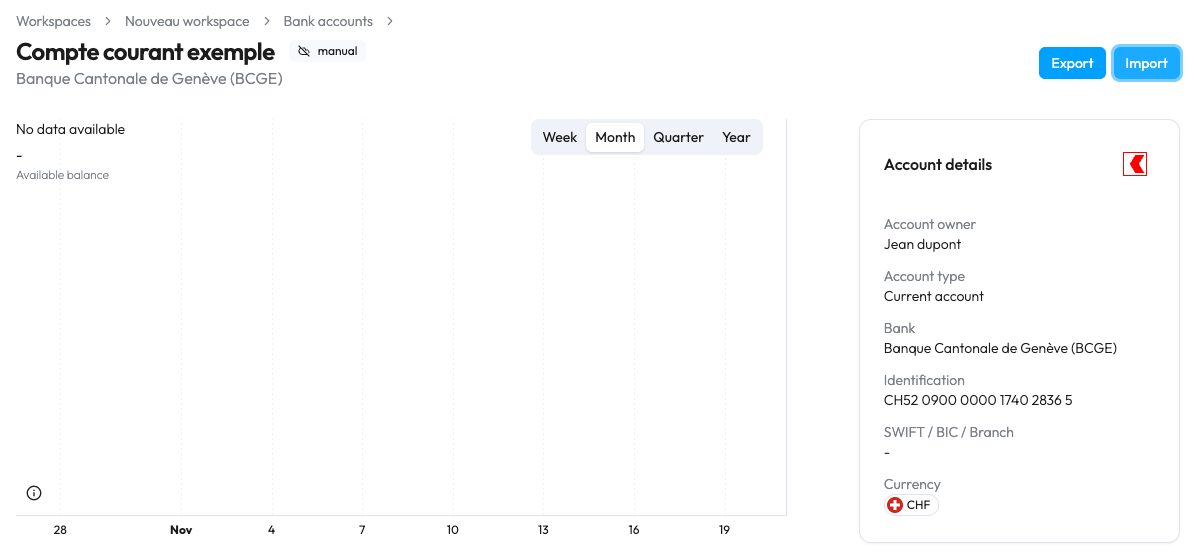
1. From the bank account details view, click on the "Import" button in the top right corner.
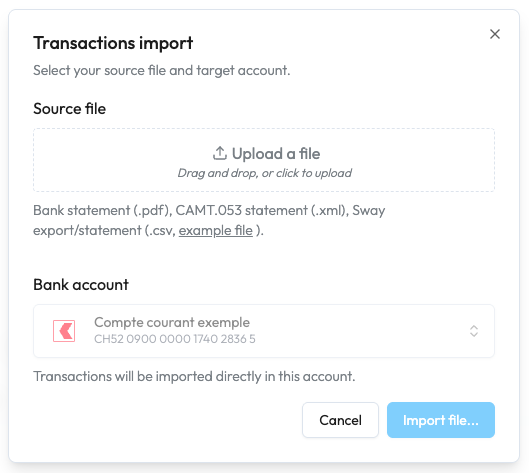
2. Select the file or drag and drop it into the designated area. Processing may take up to approximately one minute.
3. If this is the first time you are importing data into this account, enter the initial balance of the account before the first transaction on the bank statement by clicking on the blue "Edit" text in the widget at the bottom of the screen. Click "Done" once you have entered the balance.



4. Then check the following items:
a. If the calculated balance is displayed in green: it matches the closing balance detected in the file, you can complete the import by clicking on the "Import X transactions..." button. ✅ This step is now complete.
b. If the calculated balance is displayed in orange, there is an error either in the initial balance entered or in the file reading. If the initial balance is correct, then check:
i. Does the sum of debits and the sum of credits at the bottom of the page match the sum of debits and credits for the imported transactions?
ii. At least one of the two should diverge, then so (1) check that there's no invalid transaction (e.g. missing date) and that you have the right number of transactions overall.
In the latter case, or if it takes you more than 5 minutes to resolve the issue, simply click the "Cancel" button to cancel the import. Contact Sway support and attach your bank statement to the offline bank account (drag and drop zone in the bottom corner right of the bank account page). The import will be processed within 24 hours.


