
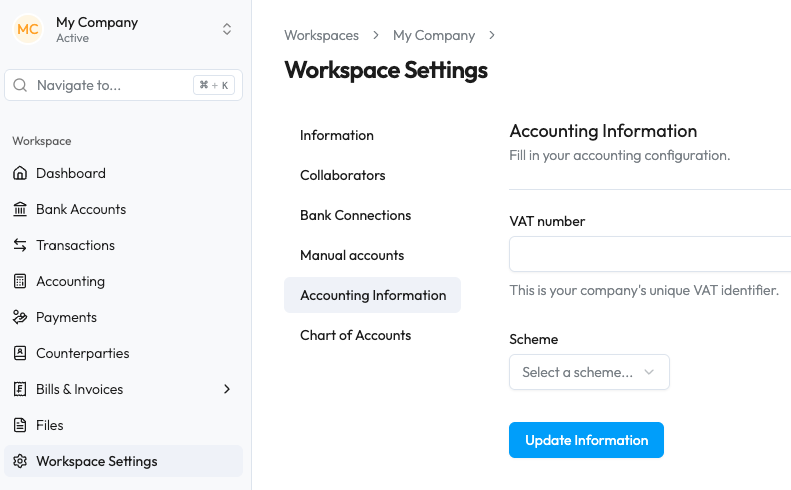
1. In the menu on the left, navigate to the workspace settings ("Settings"), then the submenu "Accounting settings" (accounting information).
2. Select your VAT scheme:
1. Cash basis
2. Accrual basis (currently not supported)
3. Net tax rate
4. Flat tax rate
3. Then navigate to the "Chart of accounts" submenu.
4. There, you'll have the choice to:
a. Use a standard chart of accounts (by clicking on the blue text at the bottom);
b. Upload your own chart of accounts by clicking on the blue "Upload" button.

5. Once you have selected one of the two options, you can check that the chart of accounts is displayed correctly and save it by clicking on the blue "Create chart of accounts" button.
6. Last step: you must assign at least one bank account to one of your accounting accounts and define a suspense account:

i. Click on the first item in the blue list above the chart of accounts: "Link at least one bank account (...)": a pop-up window will appear.

ii. Select a bank account and your corresponding bank account in Sway. Click on the "Link bank account" button.
iii. Click on the second link, "Designate or create a suspense account", and a second pop-up window will appear.
iv. If you already have a suspense account defined in your chart of accounts, you can select it from the list.
v. Otherwise, click on the blue text "Or add a new account instead".
vi. In this last pop-up window, enter an account number (e.g. 1099) and a name (e.g. "Suspense account"). The other fields can be ignored.
vii. Click on Add account.
You can access the "Accounting" menu, where you will find all the transactions for the account(s) you defined above. You will be able to access automatic encoding functions (based on AI and the rules you define), as well as export to your preferred accounting tool.
💡 If you cannot find the "Accounting" menu item, please contact Sway Finance (you can use the integrated chat): this feature is activated upon request by our partners.


