

It's easy to export your WinEUR chart of accounts to import it into a third-party tool such as Sway Finance. For example, you can automate the coding of accounting lines using our AI algorithms and then import them into WinEUR, saving you valuable time.
To export the WinEUR chart of accounts in XML format:
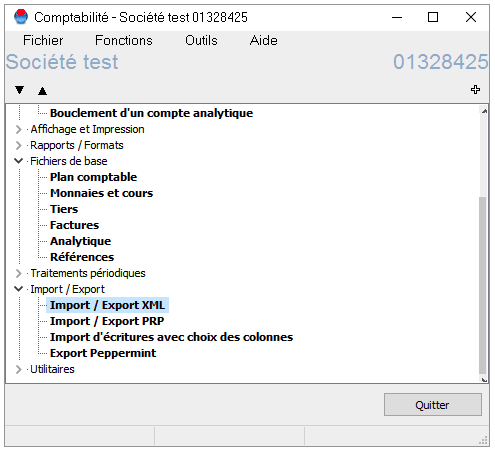
1. In the main menu of the selected company, open the "Import/Export" submenu and select "Import/Export XML".
2. Select the default format and click "Change" (A) or create a new format (B):

3. In the "Export" submenu:
i. Select items to be exported > "Without entries".
ii. Deactivate all options except "Export general ledger accounts" and "Export tax codes".

4. Close this window and then click on the ‘Export’ button. The export window will open.
5. Enter the name and/or location of your file (you can restore it later if you use GIT Cloud).
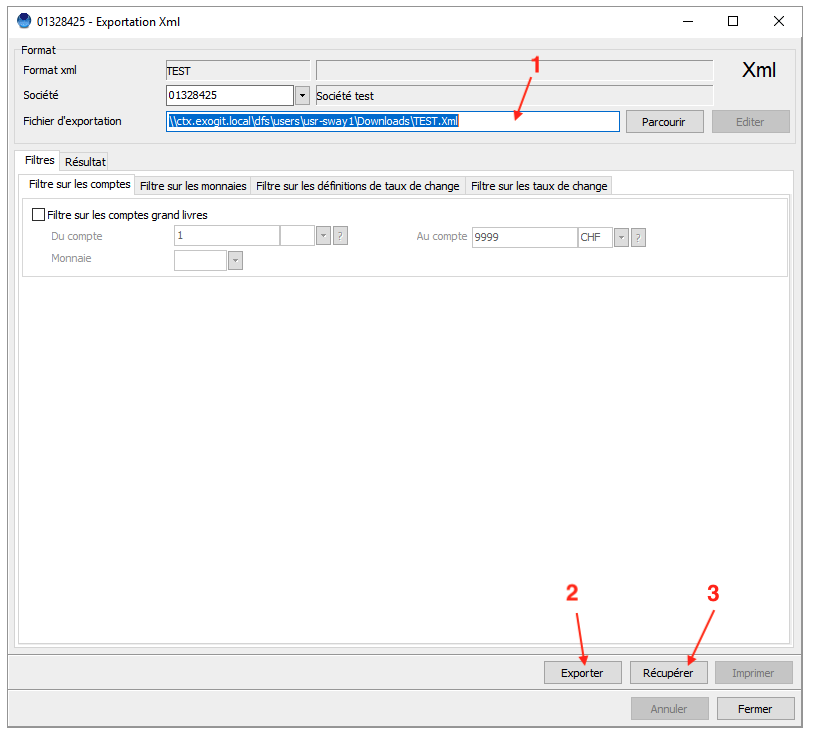
6. Click on "Export" and then on "Retrieve (GIT Cloud)" to retrieve your chart of accounts exported in XML format.
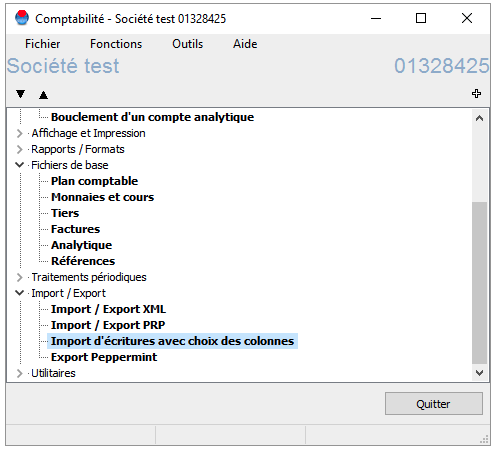
1. From the global menu of the selected company, open the import/export submenu and select "Import entries with column selection".
2. Configure or verify the configuration:
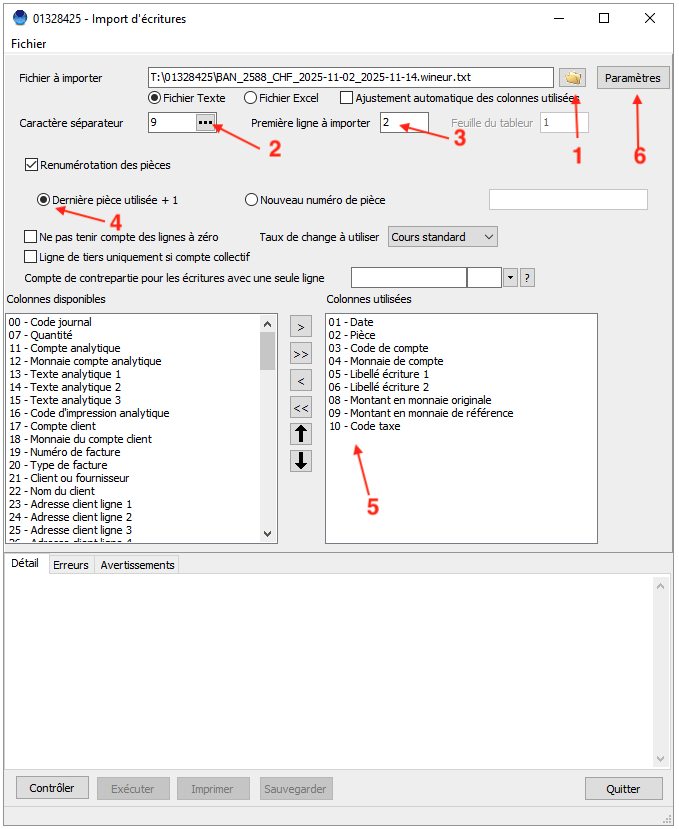

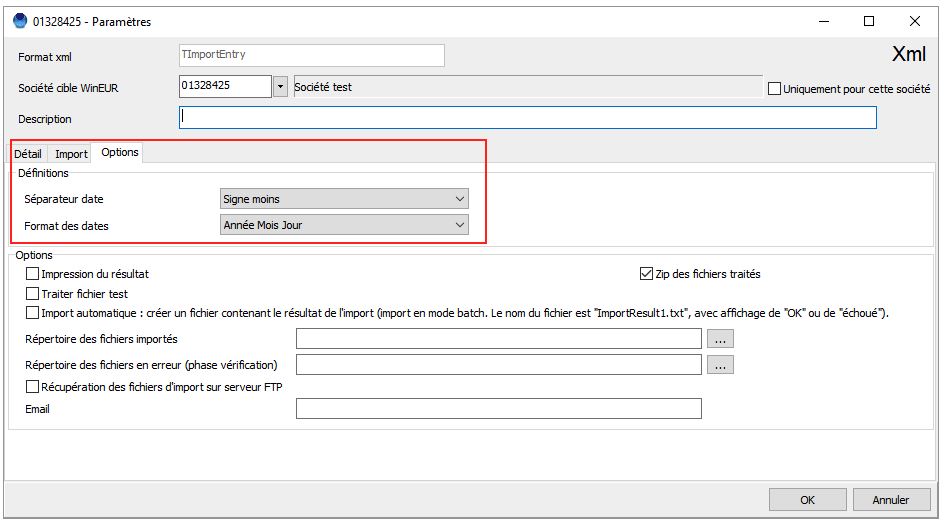
3. Under "Options", check that the selected date separator is "Minus sign" and the date format is "Year Month Day". Click "OK".
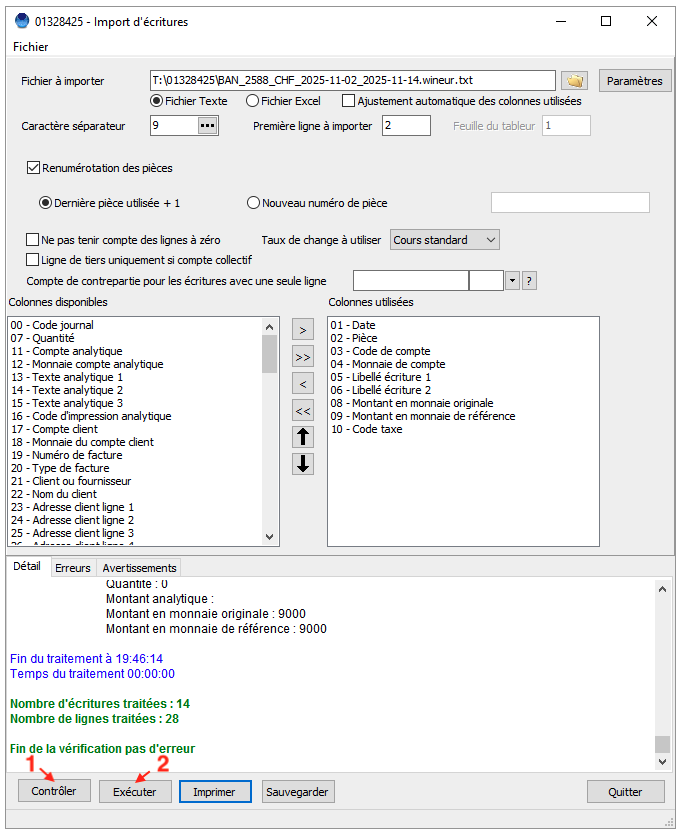
4. Click on "Check" (number 1 in the screenshot below); no errors should be displayed. If errors are displayed, check your configuration in the previous steps. Contact GIT or Sway Finance support if the error persists.
5. Then click on "Run" (number 2 in the screenshot below). The transactions are imported.
6. From the main menu, you can click on "Entry of entries" to view the imported entries.
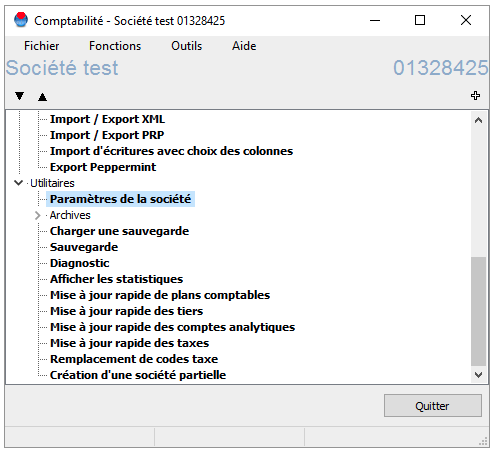
1. From the global menu of the selected company, open the Utilities submenu > "Company settings".
2. In the Accounting > General Ledger > Entry Settings submenu, you can define the numbering of accounting documents. Choose a meaningful keyword and/or simply enter a starting number.
3. Also check that the "Sequential Numbering" option is selected.
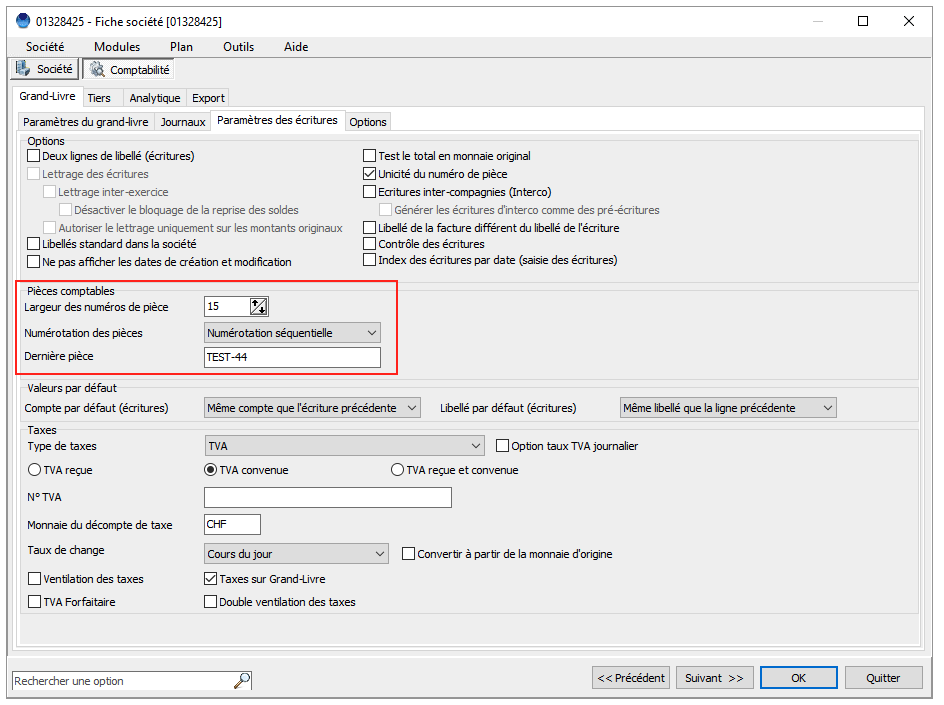
4. Click OK. WinEUR will automatically number the documents by incrementing the value from the number you specified.


