

On top of your password, Sway asks for a second factor at every sign-in: a code sent to your phone by SMS, or a code from an authenticator app. Something you know and something you have are two independent factors, the principle of strong customer authentication. You set up the factor once, right after you confirm your email address; the web app opens no workspace until it is done.
Before you start
- A confirmed email address. See Create an account.
- A mobile phone that receives SMS, or an authenticator app on your phone. See What’s an authenticator app?
Choose a method
The web app starts with SMS: once your email address is confirmed, Second factor setup asks for your phone number. To use an authenticator app instead, choose Select another authentication option under the form. Second factor selection then offers two methods:
- SMS One Time Password: a code sent to your mobile phone.
- Time-based One Time Password: a code that an app on your phone generates.
Sign out, at the top right of each setup page, stops the setup: your next sign-in brings you back to it.
Set up SMS codes

- Pick the country. The list before the number shows a flag and a dialling code, Switzerland at first. Type in the list to search for a country.
- Type your mobile number. Leave out the dialling code, as in 79 123 45 67. A number pasted with +41 or 0041 sets the country by itself. Sway uses the number only to sign you in.
- Ask for the code. Choose Receive SMS code. Sway sends the SMS and opens Second factor authentication.
- Enter the code. Type the six digits of the SMS. The form sends them as soon as the sixth digit is in; Submit code does the same.
- Start. Sway saves the number in your profile and opens Workspaces.
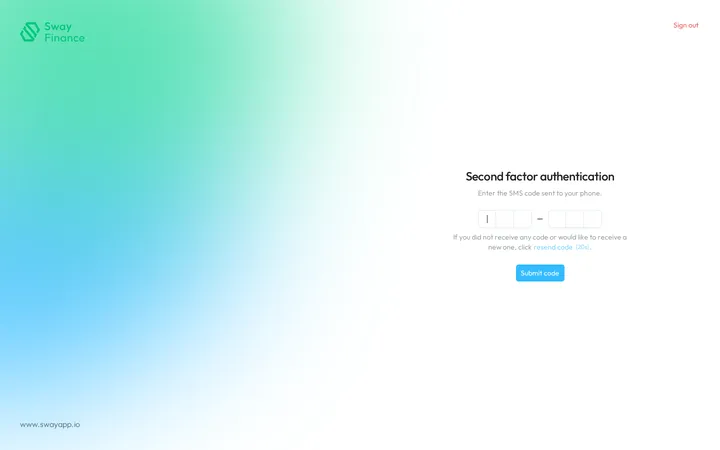
If the SMS does not arrive, resend code, in the sentence under the digits, sends a new one. A countdown makes it wait 20 seconds between two sends.
Set up an authenticator app
- Choose the app method. On Second factor selection, choose Time-based One Time Password.
- Scan the QR code. Under Step 1. Scan the QR code, scan the code with your authenticator app. If you cannot scan it, Show secret key shows the key to type into the app, with a button that copies it.
- Validate. Under Step 2. Validate, type the six-digit code that the app shows. The form sends it on the sixth digit; Submit code does the same.
- Start. Sway adds the app as your second factor and opens Workspaces.
What’s an authenticator app?, beside the QR code, opens the FAQ answer on this site. For the habits that keep your account safe, see How can I make sure no one else can access my Sway account?
Next step
With your second factor set up, create a workspace.
Related answers
Written from the Second factor selection screen of web app 1.58.0, with the labels of its EN, FR and DE catalogues.