

Reconciliation links each bank transaction to the bill or the invoice that it settles. Sway compares a debit with your bills and a credit with your invoices, on the amount, the counterparty and its IBAN, the dates, the invoice number and the payment reference. When a transaction pays the exact amount of the only document with its payment reference, Sway links them on its own; for the others, it suggests the closest documents.
Before you start
- The Owner, Admin, Member or Support role in the workspace.
- A live or manual bank account with its transactions: see Connect a bank account. Without one, the page shows No bank transactions.
- Your bills and invoices in Sway: see Incoming bills and Outgoing invoices.
Review a suggestion
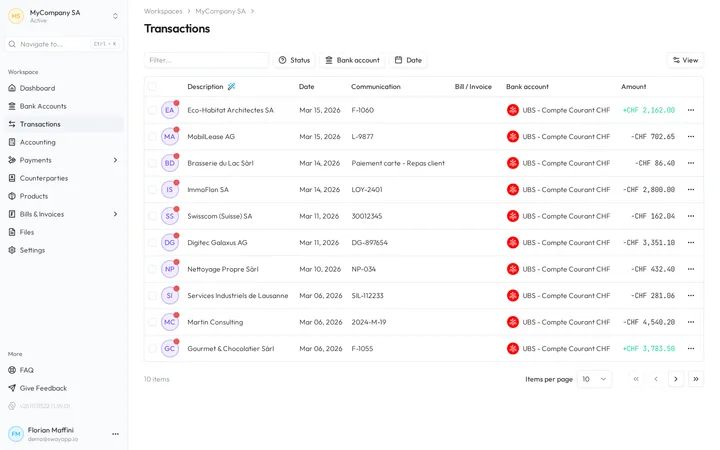
- Open the transactions. In the sidebar, choose Transactions. The list holds the transactions of every bank account, the latest first. A red dot on the avatar marks a transaction that nobody has checked yet.
- Open a transaction. Click its row. A panel opens on the right with the details from the bank and, at the bottom, Bills for a debit or Invoices for a credit.
- Read the suggestions. A suggested document carries the blue badge suggested, with its total, its number and its date. Click its counterparty to open it in a new tab.
- Approve or remove each one. The tick approves the suggestion and links the document: Sway confirms with Suggestion approved. The cross removes the suggestion.
- Mark the transaction as checked. Choose Mark as checked at the bottom of the panel. The red dot disappears, and Events dates it under Marked as checked.
The arrows at the top of the panel open the previous or the next transaction.
Link a document by hand
- Open the search. In the panel, choose the magnifier beside Bills or Invoices.
- Find the document. Type in Search for bill… or Search for invoice…, then choose the document.
- Check the link. Sway confirms with Bill linked or Invoice linked, and a green tick appears beside Bills or Invoices.
To add a document that is not in Sway yet, drop a PDF or an image on the box at the bottom of the panel, or click the box. Sway files it as a bill for a debit or as an invoice for a credit, links it to the transaction, then reads it.
How Sway reads a document
Sway reads bills and invoices in the EU; Sway stores customer data in Switzerland. During the reading, the document shows Processing document….
A document linked to another transaction
A suggestion that is already reconciled with another transaction is greyed out, with the badge reconciled. Its plus, like choosing it in the search, opens Reconcile a linked invoice? with two choices: Keep all links adds this transaction to the earlier ones, as for a bill paid in two transfers; Remove link(s) keeps this transaction only.
Unlink a document
The broken chain beside a linked document unlinks it. Unlink invoice? warns that you can then find the document only through the search; Unlink confirms.
The list of transactions
- Description holds the best description that Sway can build from the data of the transaction.
- Bill / Invoice shows a document icon once a document is linked: click it to open the document in a panel.
- View shows or hides columns, such as Counterparty, Reference and Code.
- The menu at the end of a row holds Copy ID and Mark as….
Filters and selection
Status keeps the Unchecked or the Checked transactions, Bank account some accounts, and Date a period such as Last month. Reset clears them. Filter… searches every transaction and turns the other filters off.
Tick rows to act on several transactions: a button counts them, such as 3 selected, and its menu holds Mark as….
Next step
Check what Sway read on a bill in Reconcile a bill or an invoice, then code the transactions in Cash coding.
Related answers
Written from the Transactions screen of web app 1.58.0, with the labels of its EN, FR and DE catalogues.