

A counterparty is a company or a person that you pay or bill. Sway links it to your bills, invoices and payments, and pays it on one of its bank accounts.
Before you start
- The Owner, Admin, Member or Support role in the workspace to create a counterparty. Changing, deleting or restoring one takes the Owner, Admin or Support role: with the Member role, Delete, Add account, Add contact person and the pencils stay greyed out.
- The IBAN of each bank account, and the postal address of the counterparty.
Create a counterparty
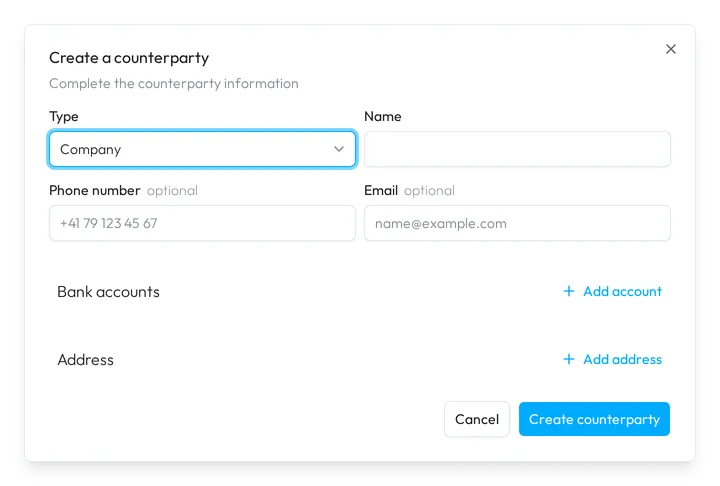
- Open the form. In the sidebar, choose Counterparties, then Create counterparty at the top right.
- Name it. Pick the Type and type the Name. Add a Phone number and an Email if you have them.
- Add its bank accounts. Under Bank accounts, choose Add account for each account and fill in its fields. Remove takes an account out.
- Add its address. Under Address, choose Add address and fill in the address.
- Create it. Choose Create counterparty. The page of the new counterparty opens.
From Make a payment, the dialog requires a bank account and the address, so that you can pay the counterparty straight away. From a bill, it starts with the details that Sway read on the bill.
Add a bank account
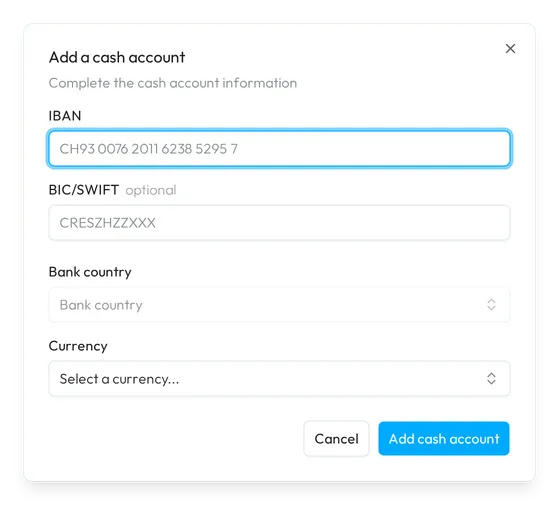
- Open the form. On the counterparty’s page, choose Add account beside Bank accounts. The Add a cash account dialog opens.
- Fill in the account. Type the IBAN: Sway fills in the Bank country from it. Add the BIC/SWIFT if you have it, and pick the Currency.
- Add it. Choose Add cash account.
Add a contact person
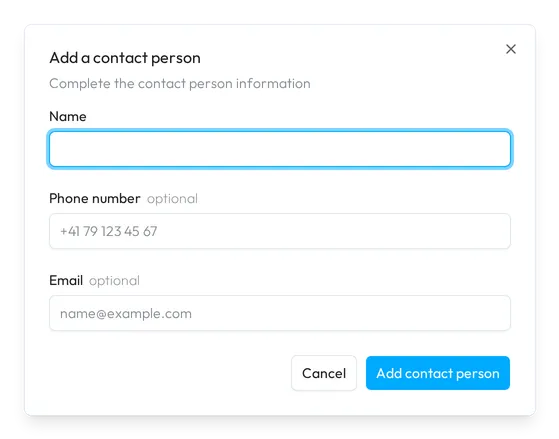
- Open the form. On the counterparty’s page, choose Add contact person, under the cards on the right.
- Describe the person. Type the Name, and add a Phone number and an Email if you have them.
- Add the person. Choose Add contact person. A Contact person card shows the details; its pencils change them.
Remove the contact person?
Delete, in the menu of a contact person’s card, permanently deletes the person’s details and their link to the counterparty.
Delete a counterparty
Choose Delete at the top right of its page, or in the menu of its card, then confirm with Delete. Sway marks the counterparty Deleted and keeps its links to payments and invoices. To bring it back, set Status to Deleted on the Counterparties page, open the counterparty, then choose Restore.
The Counterparties page
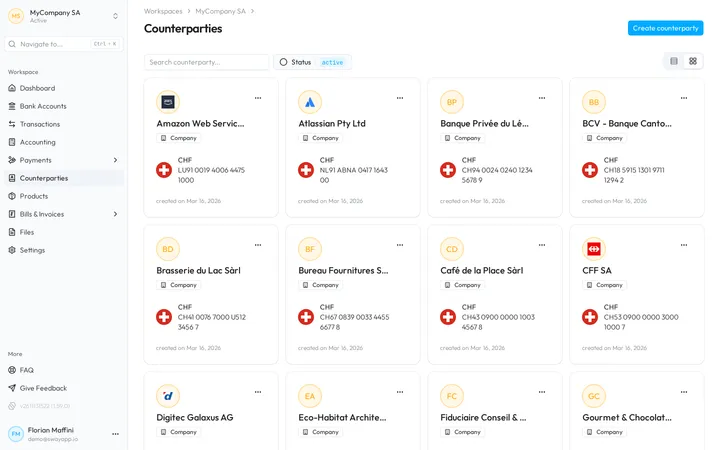
The page shows the counterparties as cards, or as a table with the two buttons at the top right. A card shows the name, the type, the first bank account and the date of creation. The table shows Name, Type, Postal address, Bank accounts and Status; View shows or hides the columns.
- Search counterparty… searches the counterparties. Status switches between Active and Deleted.
- The menu of a card or a row holds Copy ID and Delete. Click a card or a row to open the counterparty.
A counterparty’s page
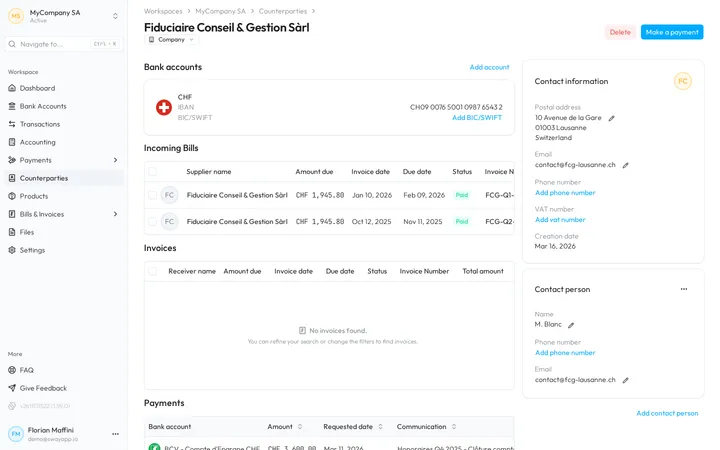
The pencil beside the name renames the counterparty, and the badge below it changes its type. Make a payment pays its first bank account, and stays greyed out while it has none.
- Bank accounts shows each account with its currency, IBAN and BIC/SWIFT. QR marks a QR-IBAN. Add BIC/SWIFT, or the pencil, sets the BIC.
- Incoming Bills, Invoices and Payments list what Sway links to the counterparty.
- Contact information shows the Postal address, Email, Phone number, VAT number and Creation date. The pencil beside a value changes it; an empty value shows a link to add it.
Fields
The Create a counterparty dialog. Bank accounts and the address are optional, except from Make a payment:
| Field | What it takes | Required |
|---|---|---|
| Type | Company or Individual. It starts on Company. | Yes |
| Name | The name of the counterparty, from 3 to 70 characters. | Yes |
| Phone number | A phone number, such as +41 79 123 45 67. | No |
| An email address, such as name@example.com. | No | |
| IBAN | The IBAN of the account. Sway checks its format and its check digits. | Yes, for each account |
| BIC/SWIFT | The BIC of the bank, such as CRESZHZZXXX. Sway checks its format. | No |
| Bank country | The country of the bank, filled in from the IBAN. | Yes, for each account |
| Currency | The currency of the account. | Yes, for each account |
| Street name | The street of the address. | No |
| Building number | The number in the street. | No |
| Post box | The post box. | No |
| Post code | The post code, 2 characters at least. | Yes, with an address |
| Town name | The town. | Yes, with an address |
| Country | The country of the address. It starts on Switzerland. | Yes, with an address |
The Add a cash account dialog takes the four fields of a bank account above.
The Add a contact person dialog:
| Field | What it takes | Required |
|---|---|---|
| Name | The name of the person. | Yes |
| Phone number | A phone number, such as +41 79 123 45 67. | No |
| An email address, such as name@example.com. Sway checks its format. | No |
Next step
Pay a counterparty with Make a payment, as Draft payments describes.
Related answers
Written from the Counterparties screen of web app 1.58.0, with the labels of its EN, FR and DE catalogues.