

Before you start
- The Owner, Admin, Member or Support role in the workspace to upload a file.
- To rename a file: the Owner, Admin or Support role.
- To delete a file: the Owner role, unless you added the file yourself.
Open the files of an account
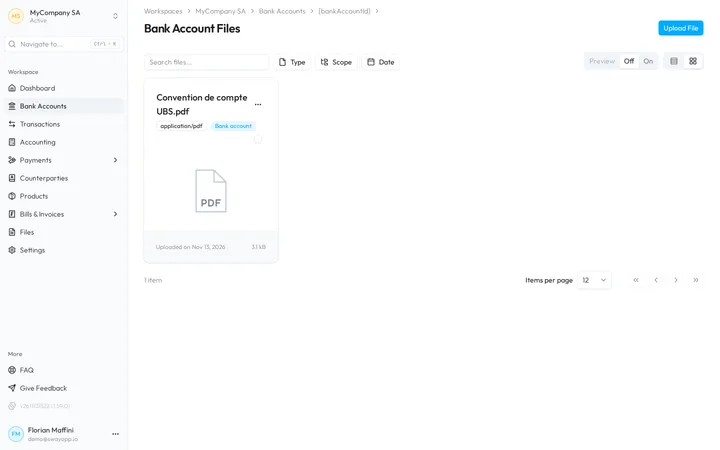
On the page of a bank account, choose See all on the Attachments card. The Bank Account Files page lists every file of the account, with its scope:
- Bank account: a file that you attached to the account.
- Import: a statement that you imported into the account.
- Export: a file that you exported with Store file in workspace ticked.
Upload a file
- Open the files of the account. Choose See all on the Attachments card of the bank account.
- Choose the file. Choose Upload File at the top right, or drop the file on the list: The file will be uploaded to your workspace.
- Find it in the list. The file appears with the scope Bank account and the date of the upload.
The page takes PDF, CSV and XML files, and images in BMP, JPEG, PNG, TIFF and WebP. To bring the lines of a statement into the account, import it instead: see Import a bank statement.
Find a file
- Search files… searches the files. While you search, the filters are greyed out.
- Type keeps the Image, PDF, Spreadsheet, Text or Archive files.
- Scope keeps the Bank account, Import or Export files.
- Date keeps a period, such as Last month or Year to date, or the dates that you pick.
- Reset clears the search and the filters.
The two buttons at the top right switch between a table and a grid. The table shows the Filename, Type, Scope, File size and Upload date of each file, and View shows or hides its columns. The grid shows the files as cards; Preview set to On shows a preview of each file.
Rename a file
Choose Rename in the menu at the end of the row of the file, or beside its name in the grid. In the dialog Rename file, type the new name in Filename and choose Rename. The extension, such as .pdf, stays as it is, and the name cannot contain a character that file names do not allow, such as a slash or a colon.
Download or delete files
- Click a file in the table to download it.
- The menu at the end of a row holds Delete. Are you sure you want to delete this file? asks before Sway deletes it.
- Tick several files, or choose Select all in the menu of the selection, then Download or Delete. A file that your role cannot delete stays out of the deletion.
A deleted file cannot be recovered
Sway deletes the file permanently. Download it first if you may need it again.
Next step
Choose what goes into an exported file in Export bank transactions.
Written from the Bank Account Files screen of web app 1.57.1, with the labels of its EN, FR and DE catalogues.