

A rule codes the transactions that match its conditions as soon as they reach Sway, from your bank or from an imported statement. A rule that assigns an account codes the transaction outright, with no suggestion to accept.
Before you start
- The Owner, Admin or Support role in the workspace. With the Member role, the page shows the rules, but Sway refuses any change.
- A chart of accounts in which at least one bank account is linked to an account. Without it, the page shows No Chart of Accounts or Your Chart of Accounts is missing some necessary configurations.
Choose how Sway codes
In the sidebar, choose Settings, then the Account coding tab. Two switches decide how Sway codes the new transactions:
- The switch under AI-powered account coding lets SwAI suggest a coding where no rule applies. It is the same setting as Auto-encode on the Accounting page.
- The switch under Rule-based account coding turns the rules on. Switched off, the rules stay but no longer apply.
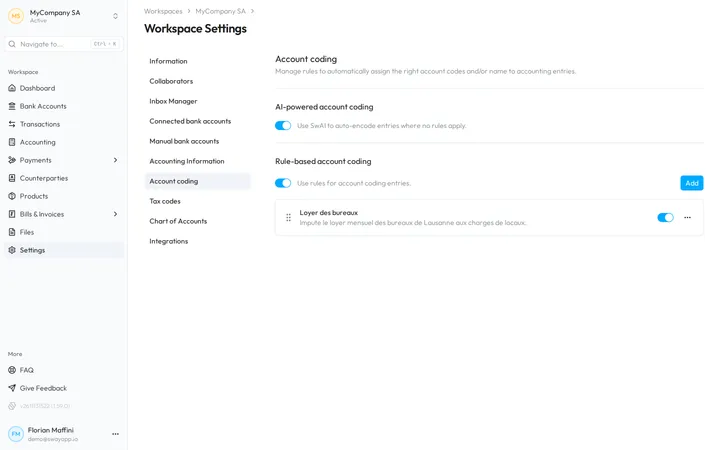
Create a rule
- Open a new rule. Choose Add above the list, or Add a rule while the list is empty. The Create rule dialog opens.
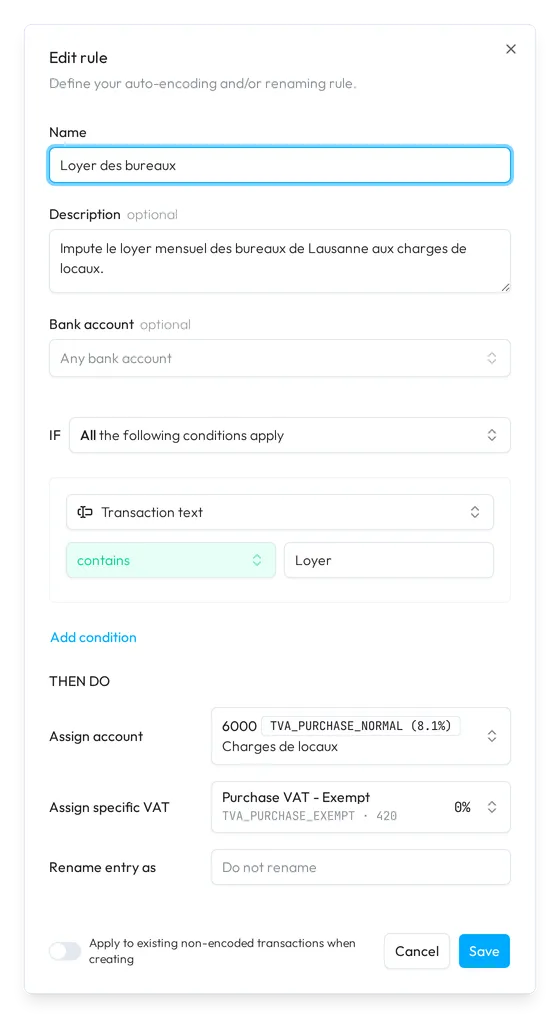
- Describe the rule. Give it a Name and, if you like, a Description. To limit the rule to one account, pick it in Bank account; otherwise keep Any bank account.
- Set the conditions. In IF, choose All to require every condition, or Any to require one of them. Each condition takes a field, an operator and a value; Add condition adds the next one.
- Set the actions. Under THEN DO, fill at least one of Assign account, Assign specific VAT and Rename entry as.
- Create it. Choose Create rule. To code past transactions too, first switch on Apply to existing non-encoded transactions when creating: the button becomes Create & apply, and the rule codes the uncoded transactions of the last 365 days.
Conditions
- Transaction text: contains or does not contain a text. Sway looks for it, regardless of case, in the name and the address of the counterparty, the communication, the reference and the additional information.
- Credit amount and Debit amount compare the amount with yours, with operators from equal to to greater than or equal to. A credit amount only matches money in, a debit amount money out.
- Transaction currency: is or is not a currency.
Order and changes
Sway applies the rules to each new transaction without a coding, from the top of the list down: the first rule that matches codes it, and the next ones are skipped. Drag a rule to change its place. Auto-encode applies the rules too, before it asks for suggestions.
Each rule has a switch that turns it on or off, and a menu:
- Edit opens Edit rule, with the same fields. With the switch at the bottom on, Save also applies the rule to the uncoded transactions of the last 365 days.
- Duplicate adds a copy, such as Loyer des bureaux (Copy).
- Delete asks you to confirm. The transactions that the rule coded keep their coding.
A deleted rule is gone
The rule is permanently deleted and cannot be recovered. To pause it, switch it off instead.
Fields
| Field | What it takes | Required |
|---|---|---|
| Name | The name of the rule, up to 100 characters. | Yes |
| Description | What the rule does, shown under its name in the list. | No |
| Bank account | One bank account linked to your chart of accounts, or Any bank account. | No |
| IF | All or Any, then at least one condition. | Yes |
| Assign account | An account of your chart of accounts, or Do not assign. | One of the three |
| Assign specific VAT | A tax code of the workspace, or Do not assign. | One of the three |
| Rename entry as | The entry name that the rule writes, or Do not rename. | One of the three |
Next step
Review what the rules coded in Cash coding, then export to your accounting tool.
Written from the Account coding screen of web app 1.58.0, with the labels of its EN, FR and DE catalogues.