

Before you start
- The Owner, Admin or Support role in the workspace. With the Member role, the Collaborators tab stays greyed out and the page shows No access.
- The e-mail address of each person you invite.
Invite a collaborator
- Open the collaborators. In the sidebar, choose Settings, then the Collaborators tab. The page lists the members of the workspace, with You beside your name.
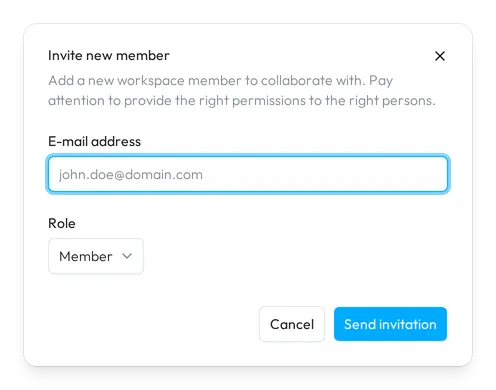
- Open the invitation. Choose Invite collaborator at the top right. The Invite new member dialog opens.
- Enter the address. Type the address of the person under E-mail address.
- Pick the role. The Role list starts on Member and describes each role in one line. It holds the roles that you can give: every role for an Owner; Admin, Support or Member for an Admin or Support.
- Send it. Choose Send invitation. The invitation waits under Pending invitations until the person accepts it.
Sway e-mails the person a link to the workspace. They open it, sign in with the invited address or create an account with it, and choose Accept in the Invitation dialog. The other Owners and Admins of the workspace hear when someone is invited and when an invitation is accepted, unless they turned these notifications off.
Roles
What each role can do in the workspace:
- Owner: everything an Admin does, plus giving, changing and removing the Owner role, deleting files and bills, and deleting the workspace.
- Admin: manages the workspace information, the bank accounts and their connections, the payments, the account coding rules and the integrations, and invites, changes or removes Admins, Supports and Members.
- Support: the same rights as an Admin, for the people who support the workspace.
- Member: works on the data. A Member imports statements and files, edits transactions, adds and edits bills, codes and exports entries, creates payments, and edits the chart of accounts and the tax codes, but changes neither the workspace information, nor the bank accounts, nor the collaborators.
Change a role or remove a member
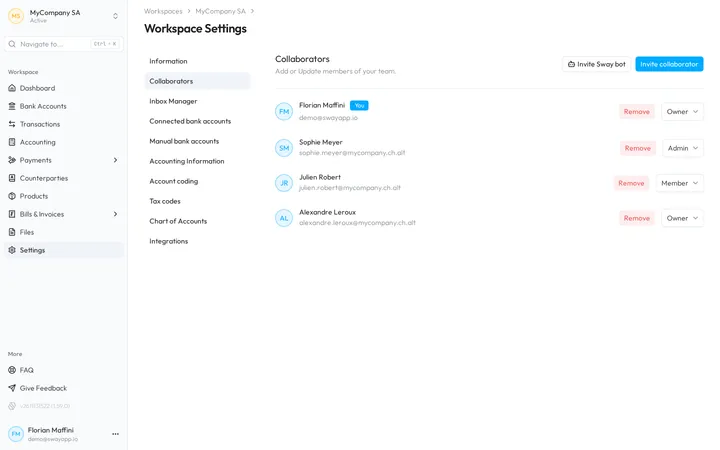
Each member has a role list and Remove on their row.
- Pick another role in the list: the change applies at once.
- Remove asks Are you sure you want to remove this collaborator? Removing a member revokes their read and write access to this workspace in every Sway app. Choose Remove to confirm.
- The last Owner of the workspace can be neither changed nor removed: their list and Remove stay greyed out. An Admin or Support cannot change or remove an Owner either.
Withdraw an invitation
Pending invitations lists the invitations not accepted yet, each with its address, its role and Withdraw. Withdraw asks Are you sure you want to withdraw this invitation? Once you choose Withdraw, the link sent to the person stops working and they can no longer join.
Invite the Sway bot
- Open the bot’s invitation. On the Collaborators page, choose Invite Sway bot. Meet Your Sway Bot Assistant lists what the bot does: Daily sync with accounting tools, Automated import/export of data and Intelligent document parsing.
- Read the consent. By inviting the bot, you consent that certified administrators of Sway access and process the data of the workspace, by automated or manual means, to provide the services. Contact our support team writes to Sway for a question or a suggestion.
- Invite it. Choose Invite. Sway confirms with Sway bot invited, and the invitation waits under Pending invitations until the bot joins with the Support role.
Invite Sway bot stays greyed out while the bot is invited or already a member.
Documents and the bot
With the bot, Sway reads the documents of the workspace in the EU; Sway stores customer data in Switzerland.
Fields
The Invite new member dialog:
| Field | What it takes | Required |
|---|---|---|
| E-mail address | The address of the person, such as john.doe@domain.com. Sway checks its format. | Yes |
| Role | One of the roles that you can give. It starts on Member. | Yes |
Next step
Describe the company in Workspace information.
Related answers
Written from the Collaborators screen of web app 1.58.0, with the labels of its EN, FR and DE catalogues.