

Before you start
- The email address and the password of your account.
- The phone or the authenticator app that you set up as your second factor. See Secure your sign-in.
Sign in
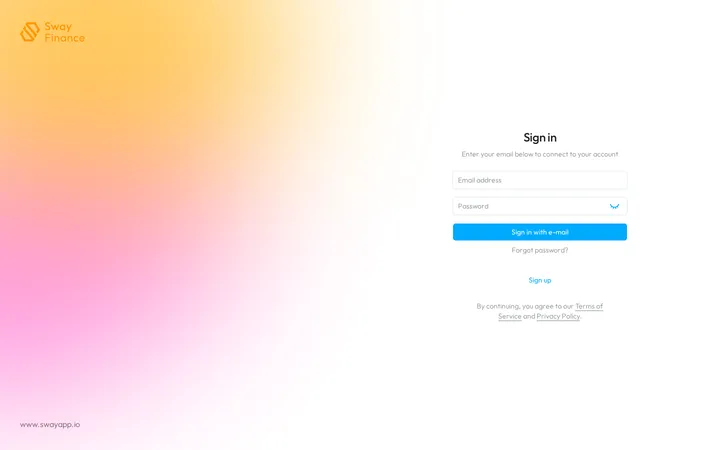
- Open the sign-in page. When you are signed out, the web app opens on Sign in.
- Enter your email address and password. Type them in Email address and in the field below it; the eye icon shows the password.
- Send them. Choose Sign in with e-mail.
- Enter the code. Second factor authentication asks for the code of your second factor. Type its six digits: the form sends them on the sixth one.
- Start working. Sway opens the workspace that you used last, or your first workspace.
If Sway has suspended your account, the sign-in fails with a message that says so. See My account is suspended, why is that?
The second factor
With SMS codes, Sway texts a new code to your phone at each sign-in. If it does not arrive, resend code sends another one after 20 seconds.
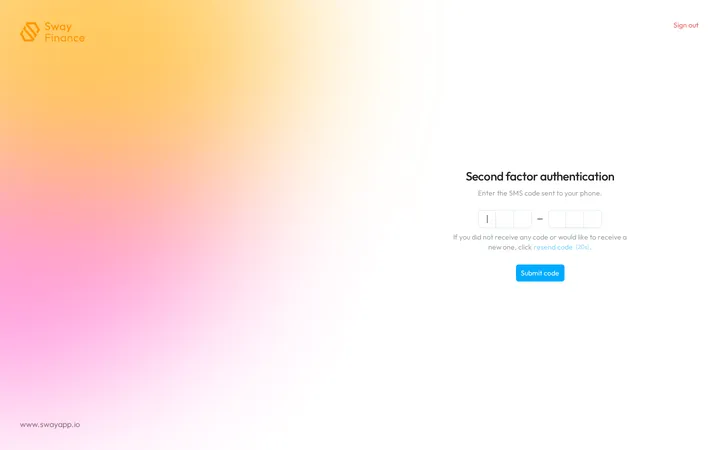
With an authenticator app, the page asks for the code from your app: type the one that the app shows at that moment.
An account with both methods gets the SMS first. Select another authentication option then opens Second factor selection, which lists the methods of your account: choose the other one.
Reopen a closed session
After 30 minutes without activity, the web app closes your session and shows Session closed. Under Continue as, choose your name, then type your password and your code: the web app takes you back to the page you were on. Not you? opens the usual sign-in, for another account.
Reset your password
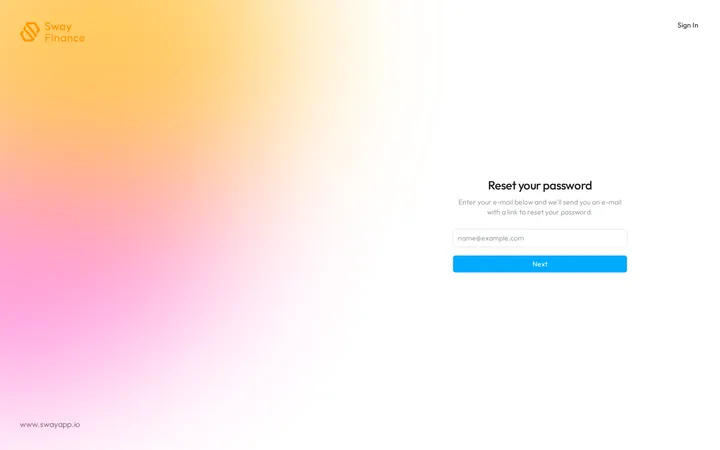
- Open the reset. On Sign in, Forgot password? opens Reset your password, with the email address that you typed.
- Ask for the link. Check the address, then choose Next.
- Open the email. Reset link sent! shows the address. Sway sends the email only if an account exists for it.
- Choose a new password. Follow the link in the email, type your new password, then sign in with it.
If the email does not arrive, Cannot find our e-mail? offers to edit your e-mail or to resend e-mail, the second after a 20-second countdown. Sign In at the top right goes back to the sign-in.
Next step
Find your way around in The dashboard.
Related answers
Written from the Sign in screen of web app 1.58.0, with the labels of its EN, FR and DE catalogues.