

Xero is accounting software. Its integration brings the bills of a Xero organisation into a workspace: every day, Sway fetches the new and changed bills and adds them to the incoming bills of the workspace.
Before you start
- The Owner, Admin or Support role in the workspace. With another role, the Integrations tab of the settings stays greyed out.
- A Xero login with access to the organisation whose bills you want in Sway.
Connect Xero
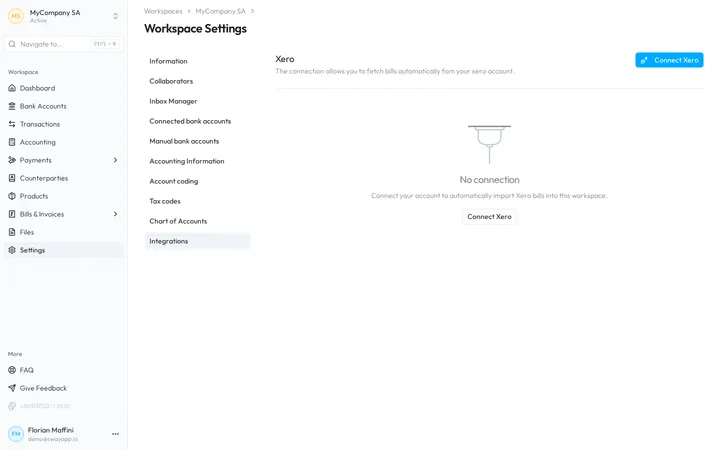
- Open the integrations. In the sidebar, choose Settings, then the Integrations tab. Without a connection, the page shows No connection.
- Start the connection. Choose Connect Xero, at the top right or under No connection.
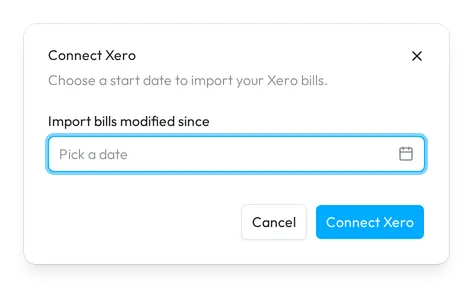
- Pick the start date. In the Connect Xero dialog, set Import bills modified since: the first sync fetches the Xero bills modified since that day.
- Authorise Sway in Xero. Choose Connect Xero in the dialog. Xero opens: sign in, then choose the organisations whose bills Sway may read.
- Come back to Sway. Once Xero sends you back, the web app shows Connection successful! Continue opens Integrations, with one card for each organisation that you authorised.
What Sway fetches
Every day, Sway fetches the bills of each organisation that changed in Xero since the last successful sync. A new Xero bill becomes a bill in Sway, with the details and the status of the Xero bill, and its first attachment as the file of the bill. It appears with the other bills in Incoming bills.
Two settings of the card, under Bill Fetching, decide what happens:
- The ticked statuses choose which new Xero bills become Sway bills: Draft, Awaiting Approval, Awaiting Payment, Paid, Voided or Deleted. Awaiting Approval and Awaiting Payment are ticked at the start.
- Keep Sway bills in sync with Xero, on at the start, carries every later change of a Xero bill, its status included, to its Sway bill, whatever the ticked statuses. Switch it off to leave each bill as Sway first created it.
The connection card
Each card shows the name of the Xero organisation with a badge for its type, the date and time of the last sync, and Last synchronisation failed in red when the last sync failed.
- The switch beside Sync now turns the daily fetch on or off. While it is off, the card hides its settings and Sync now stays greyed out.
- Sync now fetches the bills at once, without waiting for the next day.
- A connection that is no longer authorised shows a badge with its state and no settings. Sway revokes a connection when Xero no longer lists its organisation. Choose Connect Xero again to reconnect it.
Disconnect Xero
- Open the disconnection. Choose Disconnect on the card of the organisation.
- Read the warning. Disconnect Xero? warns that the Xero connection is revoked and that the automatic import of bills stops in this workspace.
- Confirm it. Choose Disconnect. Cancel keeps the connection.
The bills already fetched stay in the workspace. The card stays too, with the state of the connection.
Send bank transactions to Xero
The integration brings bills from Xero into Sway. Bank transactions go the other way:
- The export of a bank account offers Xero (.csv), a CSV file laid out for Xero: see Export bank transactions.
- The Sway bot, which you invite on Collaborators, syncs the workspace with accounting tools every day: see How to sync my Swiss bank with Xero?
Fields
| Field | What it takes | Required |
|---|---|---|
| Import bills modified since | A day from 365 days ago to yesterday, picked in the calendar of Pick a date. The first sync fetches the Xero bills modified since that day; each later sync starts from the last successful one. | Yes |
Next step
Find the fetched bills in Incoming bills.
Related answers
Written from the Integrations screen of web app 1.58.0, with the labels of its EN, FR and DE catalogues.