

Before you start
- The Owner, Admin or Support role in the workspace. With another role, Add account stays greyed out.
- For a live bank account, the e-banking login of the company: you authorise the access at your bank, not in Sway.
Two kinds of bank account
Add account on the Bank Accounts page offers two kinds of account:
- Live bank account: Sway reads the account through Open Banking, Open Banking CH or Open Banking EU depending on the bank, once you have given your consent at the bank. Sway then keeps the balance and the transactions up to date on its own.
- Manual bank account: an account with no connection to the bank. You feed it with statements in CAMT.053, PDF or CSV. See Manual bank accounts.
Connect a live bank account
- Open the menu of new accounts. In the sidebar, choose Bank Accounts, then Add account and Live bank account.
- Pick the country of the bank. The Create a bank account dialog asks you to Select your bank country.
- Find your bank. Type in Search… to filter the list. Connected Banks lists the banks that you can connect now; Other Banks lists the banks that are not live yet.
- Check what Sway will read. The Connect a new bank account dialog lists the services that the bank opens to Sway, such as Account information, Balances and Transactions, and how long the consent stays valid: until a date, or until you revoke it.
- Authorise the access at your bank. Authenticate opens your bank in a new tab. Sign in and approve the access as your bank asks.
- Return to Sway. Sway finalises the connection and shows Connection successful! Choose Continue: the accounts of the consent appear on Bank Accounts.
If Sway shows Connection failed. Please try again., start again from step 1.
Before you connect UBS or Valiant
A UBS account opened before 2023 may need Open Banking to be activated first: see Request to activate Open Banking in UBS ebanking. The answers for UBS and Valiant show their screens.
The marks in the list of banks
- A green shield: Sway has verified the connection to this bank.
- A grey shield with a question mark: the bank is available, but Sway’s team has not actively checked its services.
- An orange shield with an exclamation mark: the services of the bank are known to be limited or to work only in part.
- Coming soon: the bank is announced but cannot be connected yet.
A bank that is not live yet
A bank under Other Banks opens a dialog that says that the bank is coming soon or is not live yet:
- Keep me informed asks Sway to tell you by email when the bank is ready.
- create a manual account opens the form of a manual bank account for that bank, so that you can import its statements in the meantime.
Ask for a bank that is missing
- Open the request. Under the list of banks, after Can’t find your bank?, choose Request Bank Connection.
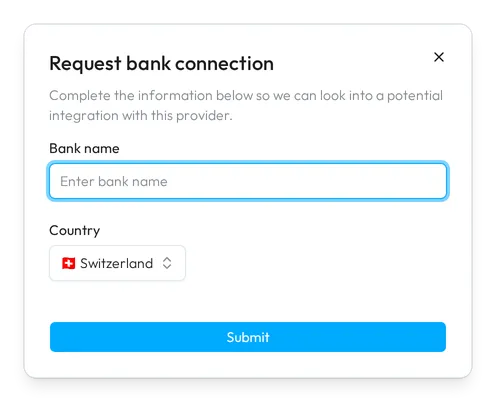
- Name the bank. In the Request bank connection dialog, enter the Bank name and check the Country.
- Send the request. Choose Submit. Sway confirms with Bank connection request submitted! and gets back to you once the team has reviewed the request.
Fields
The Request bank connection dialog:
| Field | What it takes | Required |
|---|---|---|
| Bank name | The name of the bank, from 3 to 100 characters. | Yes |
| Country | The country of the bank, chosen from the list. It starts on the country that you picked for the list of banks. | Yes |
The list of bank accounts
Bank Accounts shows a card for each bank account of the workspace: its name, its latest balance, its IBAN and a small chart of its recent balances. Icons tell a live account from a manual one, and mark an account whose consent no longer works.
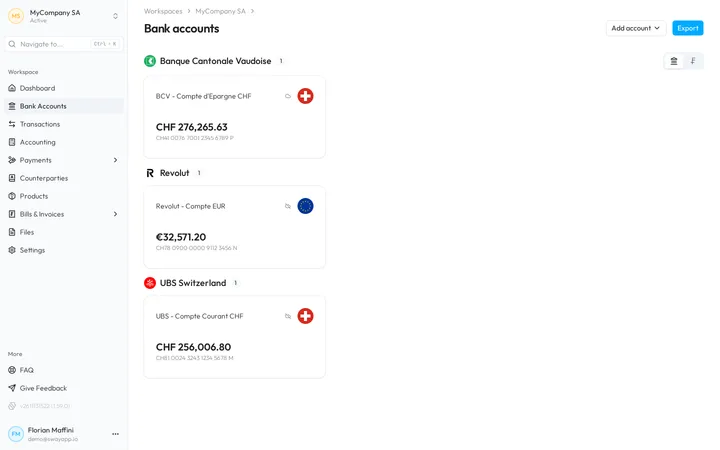
The two tabs at the top right group the cards by bank or by currency. A workspace with no account shows No bank accounts and a Connect bank account button.
Next step
Follow the consent behind each live account in Bank connections, then open an account to read its balances and history.
Related answers
Written from the Bank accounts screen of web app 1.57.1, with the labels of its EN, FR and DE catalogues.