

Sway sends a payment to your bank in one of two ways, set by the bank that you pay from. Through Open Banking CH, Sway submits a draft that an authorised user approves later in the e-banking: Draft payments lists these drafts. Through Open Banking EU, you authorise the payment at your bank as you make it: see Scheduled payments.
Before you start
- The Owner, Admin, Member or Support role in the workspace.
- A live bank account whose bank takes payments from Sway. A manual bank account cannot pay.
- The payee as a counterparty with an IBAN, or its details to create it on the way. Sway pays an IBAN only: see Can I make a payment to an account that doesn’t have an IBAN?
Make a payment
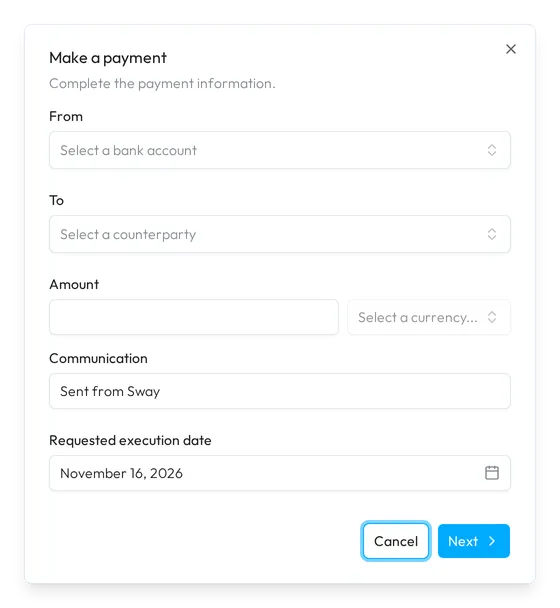
- Open the payment form. In the sidebar, choose Payments, then Draft, and Make a payment at the top right.
- Choose the account to debit. Under From, pick a live bank account. The list holds only the accounts whose bank takes payments from Sway.
- Choose the payee. Under To, pick a counterparty’s bank account under Third parties, or another account of the workspace under Active bank accounts. Create a new counterparty, at the end of the list, creates one: see Counterparties.
- Describe the payment. Type the Amount, in the currency of the payee’s account, keep or replace the Communication, and pick the Requested execution date. A payee account with a QR-IBAN adds the Reference field.
- Check the summary. Choose Next: Sway checks the payment and opens Payment summary. Back returns to the form.
- Send the payment. For an Open Banking CH account, choose Submit payment: Sway confirms with Payment successfully created. For an Open Banking EU account, choose Next and authorise the payment at your bank, as Scheduled payments shows.
Make a payment also opens from a counterparty’s page, with its account under To, and from a bill, filled in from the bill.
Approval in the e-banking
Your bank executes a draft payment only once an authorised user has approved it in the e-banking.
Pay one of your own accounts
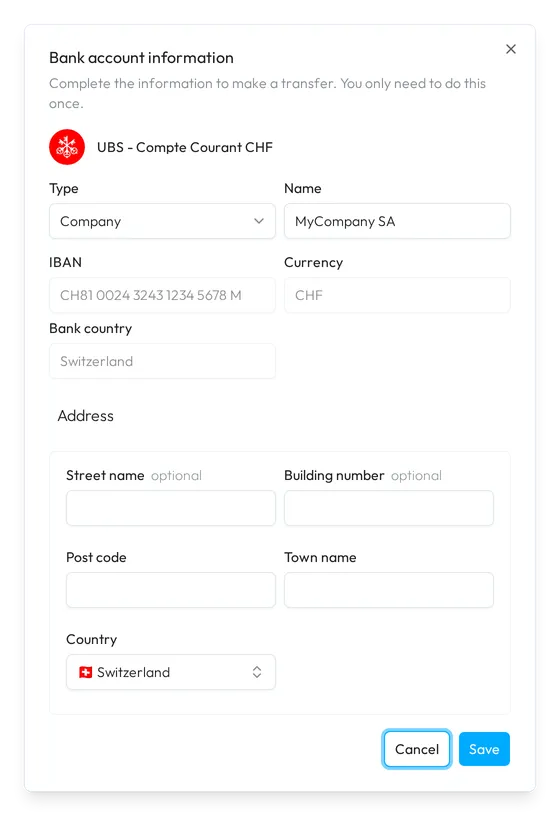
An account under Active bank accounts that you have not paid yet shows Missing information. Choosing it opens Bank account information: check the Type and the Name, fill in the address, then choose Save. Sway creates a counterparty for the account, once, and puts it under To.
What Sway checks
Sway checks the payment each time that you change the account, the payee or the date. A warning flags a payment for today or more than 60 days ahead, a currency other than the debited account’s, or a bill that already has a payment. An error flags a debited account without an IBAN or its owner’s name, or a payee without an IBAN, an address or a BIC that the payment needs; its link opens the counterparty. When Sway knows the BIC of the payee’s bank, it uses it and saves it on the counterparty.
Check the payee
Through Open Banking EU, Sway also checks the payee’s name and IBAN with the bank, and keeps the result for later payments to that account. In Payment summary, a green tick beside the payee’s name means that the payee is verified. An amber shield comes with a warning that Sway could not confirm the payee’s identity: go on only if you know the payee, or choose Back and correct the counterparty. A payee that the bank rejects stops the payment with an error. Through Open Banking CH, Sway runs no such check. See What is Verification of Payee (VoP)?
The Draft payments page
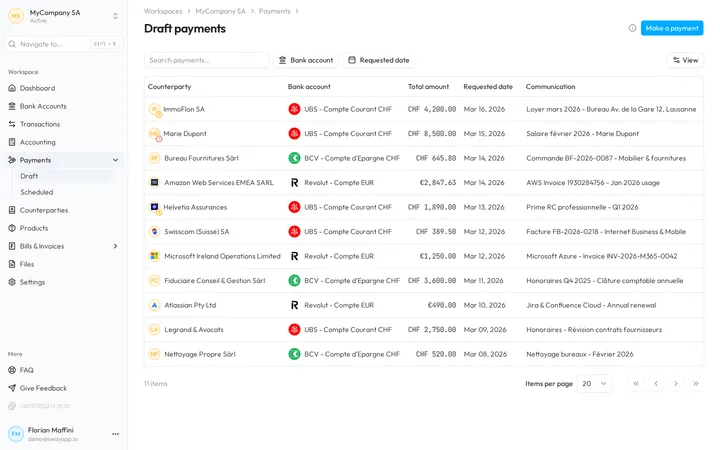
The table shows Counterparty, Bank account, Total amount, Requested date, Communication and Invoice, which links to the bill that the payment pays. View adds Reference or hides a column.
- Search payments… searches the payments. Bank account and Requested date filter the list; Reset clears them.
- The menu of a row holds Copy ID, Copy communication, Copy reference and Send again, which opens Make a payment with the same details.
- A sign on the counterparty’s logo shows the status that the bank returned: a yellow question mark while the bank has not confirmed it, a red exclamation mark when the bank rejected the payment. A payment without a sign was accepted.
Click a row to open the payment: Creation date, Requested execution, the bank’s reason for a rejection, the payees, the account under Submitted via, the bills under For invoice, and the Attachments.
Fields
The Make a payment dialog:
| Field | What it takes | Required |
|---|---|---|
| From | A live bank account whose bank takes payments from Sway, with an IBAN and an owner’s name. | Yes |
| To | A counterparty’s bank account, or another account of the workspace, with an IBAN. | Yes |
| Amount | An amount greater than zero, such as CHF 1’250.00, in the currency of the payee’s account. | Yes |
| Communication | The message for the payee: up to 100 characters through Open Banking CH, 18 through Open Banking EU. It starts as Sent from Sway. | Yes |
| Reference | The QR reference of 27 digits, such as 21 00000 00003 13947 14300 09017. | Yes, for a QR-IBAN |
| Requested execution date | From today through Open Banking CH, from tomorrow through Open Banking EU. A weekend moves to the Monday. | Yes |
The Bank account information dialog takes the Type, the Name and the address fields of a counterparty, listed in Counterparties, without Post box. The Name starts on the owner of the account, and the Country on the country of its IBAN.
Next step
Authorise a payment at your bank in Scheduled payments, or pay several bills at once with Pay bills.
Related answers
Written from the Draft payments screen of web app 1.58.0, with the labels of its EN, FR and DE catalogues.