

The catalogue lists what your company buys and sells. Each product has a code and a name, and can carry a sale side, a purchase side and the supplier that it comes from.
Before you start
- The Owner, Admin, Member or Support role in the workspace to see, create and edit products. To delete or restore a product that someone else created: the Owner, Admin or Support role.
- For the accounts of a product, a chart of accounts; for its tax codes, the tax codes of the workspace.
Create a product
- Open the catalogue. In the sidebar, choose Products.
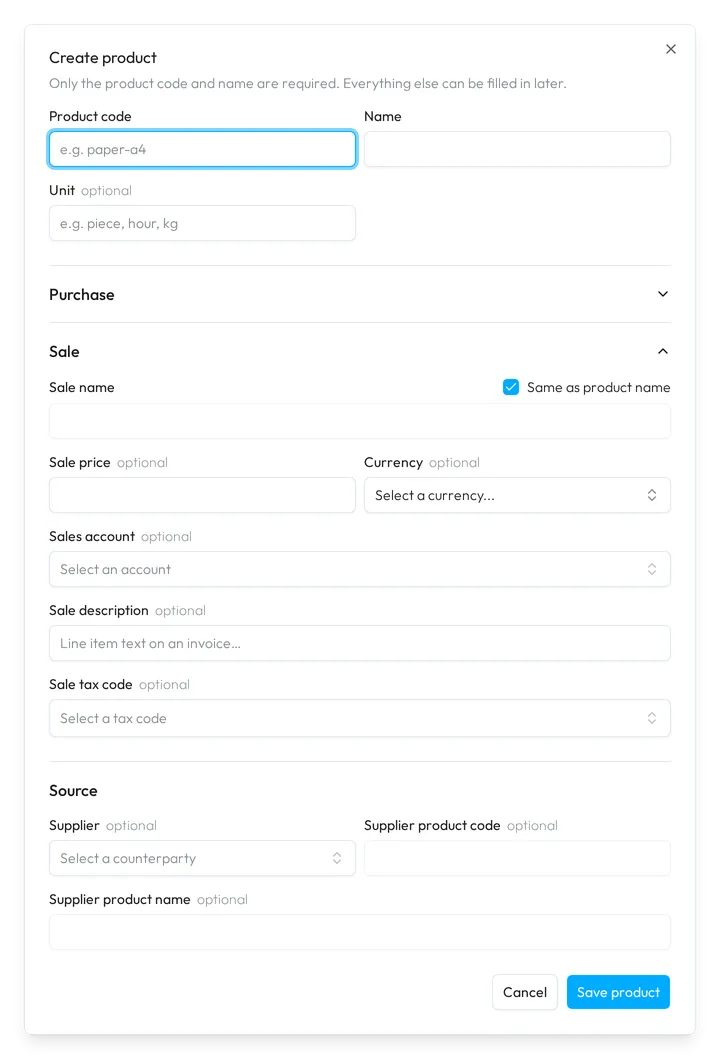
- Open the form. Choose Create product at the top right. Only the product code and the name are required; the rest can wait.
- Name the product. Fill in Product code and Name, and a Unit if you count the product, such as by the hour.
- Describe the sale. The Sale part is open: set the price and its currency, the account, the line text and the tax code that sets the VAT of a sale. Open Purchase to do the same for purchases.
- Add the source. Under Source, pick the Supplier among your counterparties, or choose Create a new counterparty, then add its own code and name for the product.
- Save it. Choose Save product. Sway confirms with Product created.
When you pick an account, Sway fills in the tax code of that account. If you choose another code, Tax type doesn’t match this account names the code that the account normally uses and asks whether you keep yours.
The catalogue
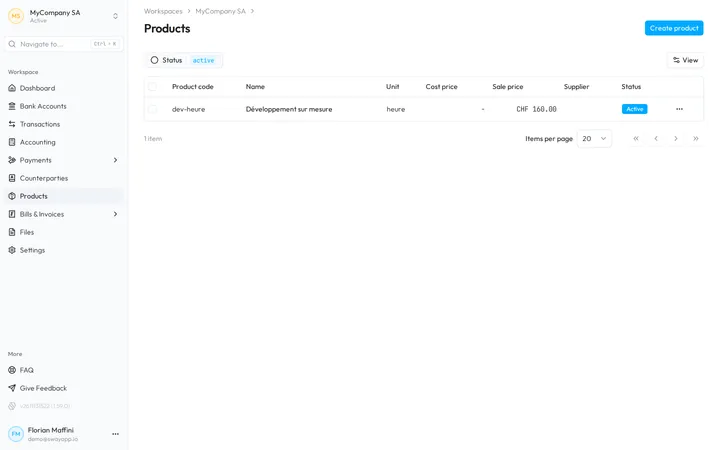
The table shows the Product code, Name, Unit, Cost price, Sale price, Supplier and Status of each product, and View shows or hides the columns. Status shows the Active products, or the Deleted ones; Reset goes back to the active ones.
Click a row to open the product in a panel on the right: Pricing, Sale, Purchase and Source sum it up, the arrows move to the previous or next product, and its menu holds the actions.
Edit a product
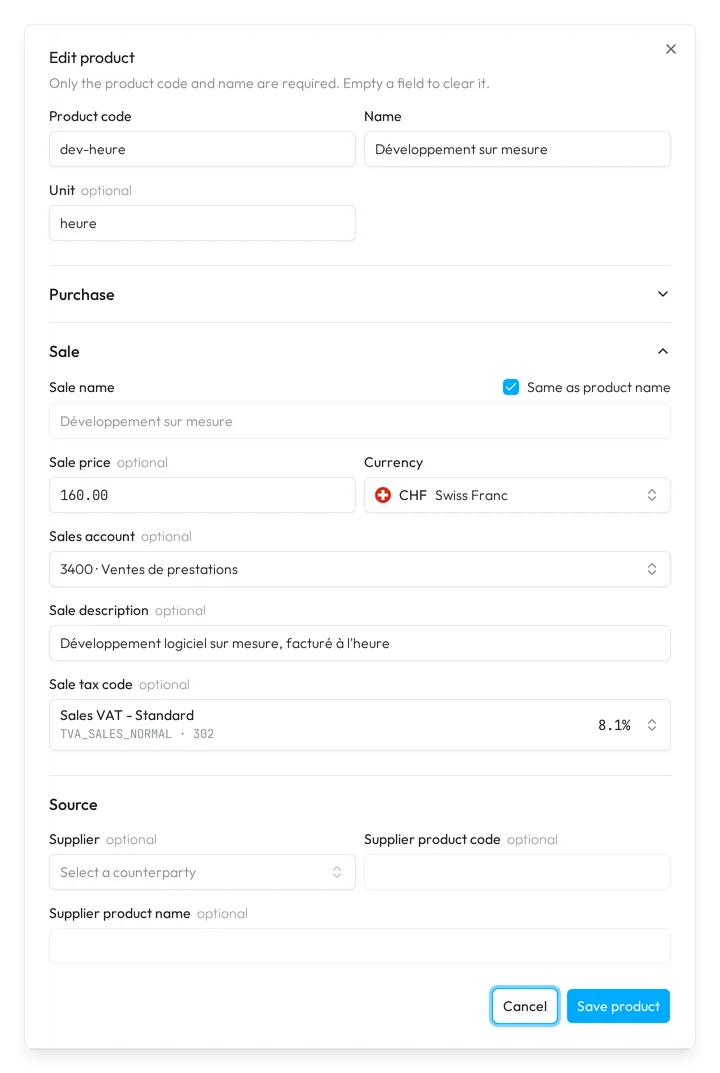
Choose Edit in the menu of the row or of the panel. Edit product holds the same fields as the creation; empty a field to clear it. Choose Save product: Sway confirms with Product updated.
Delete or restore a product
Choose Delete in the menu of a product, or tick several products and choose Delete in the menu of the selection. The confirmation warns that the products leave the catalogue and every product picker, and that their codes stay reserved: a new product cannot reuse them.
To bring a product back, set Status to Deleted, then choose Restore in its menu. Sway confirms with Product restored.
Fields
The Create product and Edit product dialogs:
| Field | What it takes | Required |
|---|---|---|
| Product code | A code of up to 50 characters, such as paper-a4, unique in the workspace. Sway saves it in lower case. | Yes |
| Name | The name of the product, up to 100 characters. | Yes |
| Unit | A unit from the list, such as piece, hour or kg, or your own, up to 20 characters. | No |
| Purchase name | The name for purchases, up to 100 characters. Same as product name, ticked at first, copies Name. | Yes, when Same as product name is unticked |
| Cost price | The purchase price, zero or more. | No |
| Currency | The currency of the price beside it: A currency is required when a price is set. | Yes, when a price is set |
| Purchase account | An account of the chart of accounts, shown when the workspace has one. | No |
| Purchase description | The line text of the product on a bill, up to 500 characters. | No |
| Purchase tax code | A tax code of the workspace. | No |
| Sale name | The name for sales, up to 100 characters, with its own Same as product name. | Yes, when Same as product name is unticked |
| Sale price | The sale price, zero or more. | No |
| Sales account | An account of the chart of accounts, shown when the workspace has one. | No |
| Sale description | The line text of the product on an invoice, up to 500 characters. | No |
| Sale tax code | A tax code of the workspace. | No |
| Supplier | A counterparty of the workspace. | No |
| Supplier product code | The code of the supplier for the product, up to 50 characters. Greyed out until you pick a supplier. | No |
| Supplier product name | The name of the supplier for the product, up to 100 characters. Greyed out until you pick a supplier. | No |
Next step
Set up the codes that a product uses in Tax codes.
Related answers
Written from the Products screen of web app 1.58.0, with the labels of its EN, FR and DE catalogues.