

Before you start
- A manual bank account. A live bank account updates itself, so it has no import.
- The Owner, Admin, Member or Support role in the workspace.
- The statement as a PDF, a CAMT.053 file, or a CSV file laid out like the example file of the import dialog.
Ask your bank for a CAMT.053 export when you can: the file holds structured data, so Sway imports it without a preview. For UBS, see How do I check my CAMT reporting settings in UBS?
Import a statement
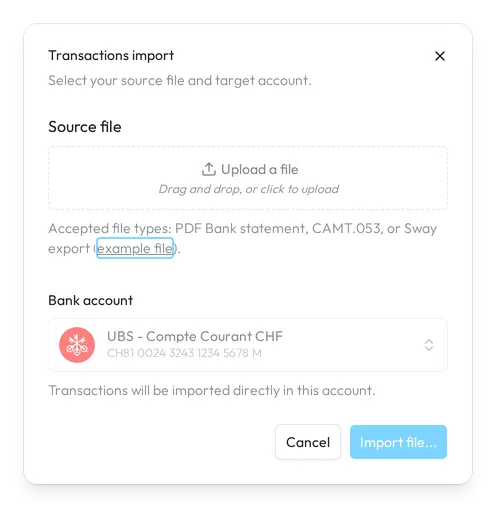
- Open the bank account. In Bank Accounts, open the manual account that the statement belongs to.
- Open the import. Choose Import at the top right. The Transactions import dialog asks you to Select your source file and target account. The Bank account is the one you opened.
- Add the file. Under Source file, drop the file or click to choose it. example file in the hint downloads the CSV layout that Sway reads.
- Preview or import. For a PDF or a CSV file, choose Preview file…: the transactions are imported after your review, in the Transactions preview. For a CAMT.053 file, choose Import file…: the transactions go straight into the account, and the Import summary follows.
- Review the lines. In the Transactions preview, Sway selects the valid lines. Set the starting balance, correct a cell, add or remove a line, and untick a line that you want to leave out.
- Import the selected lines. Choose Import 12 transactions…: the button counts the selected lines. Check the account and its IBAN in Import confirmation, then choose Confirm.
How Sway reads a PDF
Sway reads PDF statements in the EU; Sway stores customer data in Switzerland. When a file takes longer to read, the Processing in Background dialog opens: you receive a link by email to finalise the import once processing is complete, usually within a few minutes.
Check the balances
The bar under the lines shows two balances. Starting balance is the balance before the first line of the statement; Next closing balance is the balance that Sway computes after the last selected line. Its colour and its tooltip say whether it matches the closing balance printed on the statement.
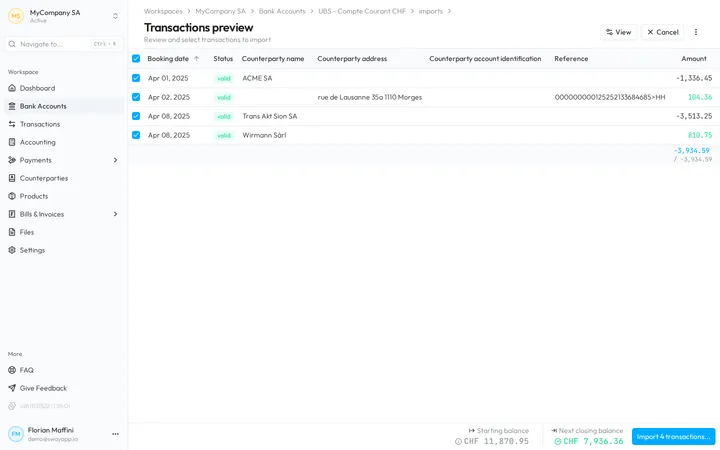
The Balance column runs the same check on each line. Its tooltip says whether the computed balance matches the statement on that line, gives the expected balance when it does not, or says that the statement shows no balance there.
Starting balance
Open Starting balance to choose an opening balance from the account history or to set your own: the imported transactions apply from this balance. Auto picks a balance from the account history, shown with its date; Custom lets you type an amount, such as CHF 1’234.50.
The import waits for a starting balance: an account with no history shows No starting balance found nor configured. Set a custom balance then, as the statement prints it before its first transaction.
Closing balance mismatch
When the computed closing balance does not match the one on the last transaction of the statement, Sway asks before it imports. Closing balance mismatch shows the Expected balance, the Computed balance and the Difference. When the statement shows no closing balance, the dialog is Unknown closing balance instead.
- Ask for help opens the support chat.
- Cancel takes you back to the lines, to correct them or the starting balance.
- I’m certain, import goes on with the import. Choose it only if you are certain that the computed balance is correct.
Edit the lines
- Each line has a menu: Add row above and Add row below insert a line that the statement shows and the preview missed, and Remove row takes a line out. A line that you insert shows Added.
- Type in a cell to correct it. Add shows one more detail of a line, such as Counterparty address, Communication or Payment reference.
- A cell without a value shows No date or No amount. Fill it in before you import.
- A line that Sway could not read cannot be selected until you correct it. A line already in the account, or twice in the file, is not selected.
For a PDF, the preview shows the statement beside the lines, with Horizontal or Vertical to arrange them. The toolbar also sets Auto scroll, Annotation mode, which marks the values read on the PDF, and Status highlight, which colours each line by its state. For a CSV file, View shows or hides the columns.
Unsaved import in progress
If you leave the preview before you import, your import work and edits are lost, and the import starts again from the beginning. Stay on page keeps them; Quit leaves.
After the import
The Import summary counts the Transactions imported, the Transactions skipped and the Transactions duplicates: Show lists them. It then gives the Total debited, the Total credited, the Balance variation and the Closing balance. Import new file starts the next import; Finish closes the summary.
The statement stays with the account, in its files under the scope Import: see Bank account files.
Fields
The Transactions import dialog:
| Field | What it takes | Required |
|---|---|---|
| Source file | One file: a PDF bank statement, a CAMT.053 file (.xml), or a CSV file laid out like the example file of the dialog. | Yes |
Next step
Read the imported lines in Balances and history.
Related answers
Written from the Transactions preview screen of web app 1.57.1, with the labels of its EN, FR and DE catalogues.