

Two batch actions of Incoming Bills pay several bills at once. Pay bills sends them to your bank through Open Banking CH, as one draft payment with a transfer for each bill. Export as XML (pain.001) builds a pain.001 file that you upload to your e-banking.
Before you start
- The Owner, Admin, Member or Support role in the workspace.
- Bills in any status but Draft and Voided, with an amount greater than zero, all in one currency. Any other selection stops with Some bills cannot be paid or Multiple currencies selected: see Incoming bills.
- Each bill linked to its supplier, a counterparty with an IBAN and an address: see Counterparties.
- For Pay bills, a live bank account at a bank connected through Open Banking CH. For an export, any bank account of the workspace with an IBAN.
Pay several bills
- Select the bills. In the sidebar, choose Bills & Invoices, then Incoming Bills, and tick the bills.
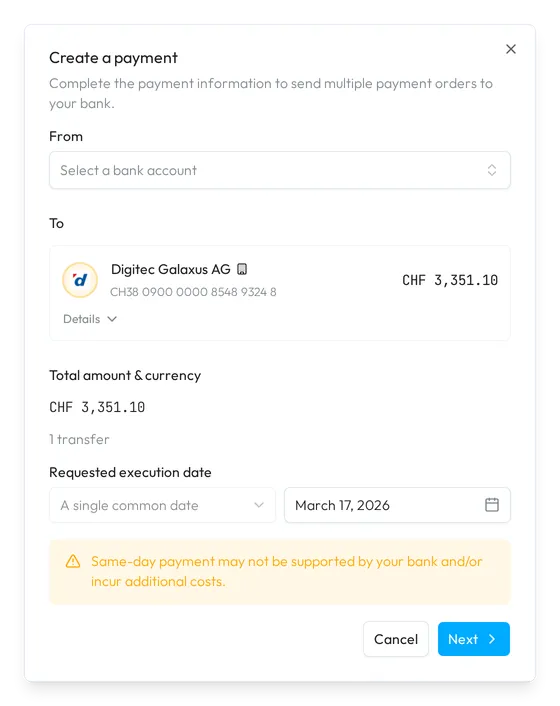
- Open the payment. Open the button that counts the selected bills, at the top right, and choose Pay bills. The Create a payment dialog opens.
- Choose the account to debit. Under From, pick a live bank account. Sway checks every bill against it.
- Check each bill. To shows a card for each bill with the supplier, its IBAN and the amount. Details adds the date, the communication, the reference and the supplier’s Bank account, which you can change.
- Pick the date. Requested execution date stays on A single common date: pick the day on which the bank executes the payments.
- Submit the payments. Choose Next, check the Payment summary, then choose Submit payments. Sway confirms with Payment successfully created; an authorised user then approves the payments in the e-banking.
Export a payment file
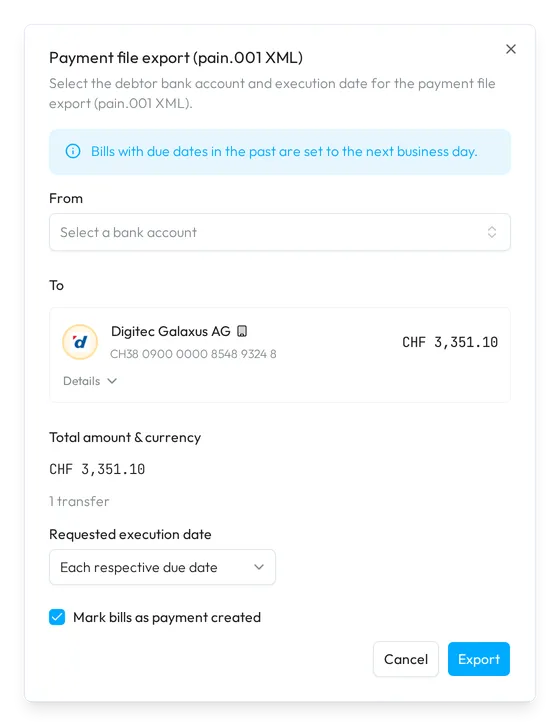
- Open the export. Select the bills as above, and choose Export as XML (pain.001). The Payment file export (pain.001 XML) dialog opens.
- Choose the account to debit. Under From, pick a bank account with an IBAN, live or manual. To shows the same cards as for a payment.
- Pick the dates. Each respective due date pays each bill on its due date; a due date in the past moves to the next business day. A single common date pays every bill on the day that you pick.
- Mark the bills. Keep Mark bills as payment created ticked so that the exported bills show Payment created. Sway remembers your choice.
- Export the file. Choose Export. Sway downloads the file and confirms with File exported successfully. Upload the file to the e-banking of the debited account.
Pay one bill
Make a payment on a bill opens the form of Draft payments, filled in from the bill. The end of the To list then offers Create « Digitec Galaxus AG », which creates the supplier as a counterparty from the details on the bill. See How do I create a payment from an invoice?
What the check reports
Sway checks the bills each time that you change the account, a supplier’s account or the date. A red sign beside To flags a bill that cannot be paid yet; its card lists what is missing, with a link to correct it.
- On the bill: Counterparty, Currency, Amount, Amount (must be greater than zero) or QR Reference.
- On the supplier: Bank account, BIC or Address. A pain.001 file needs an address with a country, a town and a post code.
- On the debited account: an IBAN, the name of its owner, and a BIC for a file. When Sway knows your bank’s BIC, it uses it and saves it on the account.
A yellow notice flags a bill that already has a payment or is marked as paid, a QR bill paid to an account that is not a QR-IBAN, an account that is not on the bill, or a currency other than the account’s. See bill opens the bill.
Fields
The Create a payment dialog:
| Field | What it takes | Required |
|---|---|---|
| From | A live bank account at a bank connected through Open Banking CH, with an IBAN and the name of its owner. | Yes |
| Requested execution date | A single common date and the date, from today. It starts on the next business day. | Yes |
The Payment file export (pain.001 XML) dialog:
| Field | What it takes | Required |
|---|---|---|
| From | A bank account of the workspace with an IBAN. | Yes |
| Requested execution date | Each respective due date, which it starts on, or A single common date and the date. | Yes |
Next step
Follow the submitted payments in Draft payments, then match each bill with its transaction in Reconcile a bill or an invoice.
Related answers
Written from the Create a payment screen of web app 1.58.0, with the labels of its EN, FR and DE catalogues.