

Before you start
- The Owner, Admin, Member or Support role in the workspace.
- A bank account in Sway, live or manual. See Connect a bank account.
Open a bank account
In the sidebar, choose Bank Accounts, then the card of the account. The Bank account page opens with the name of the account, its bank, and a live or manual badge. A disconnected badge shows when the consent behind a live account no longer works.
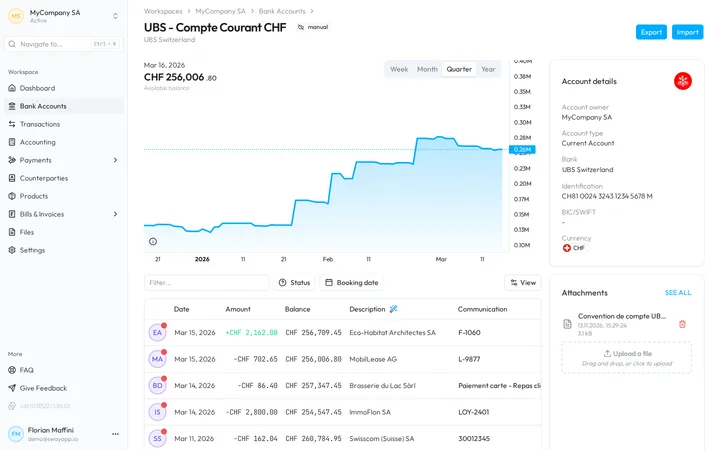
At the top right, Export opens the export; on a manual account, Import opens the import of a statement.
The balance over time
The Available balance chart draws the balance of the account over time. Week, Month, Quarter and Year set the period of the chart; the page opens on Quarter.
Account details
The Account details card holds the Account owner, the Account type, the Bank, which links to the website of the bank, the Identification, the BIC/SWIFT and the Currency. The copy button beside the identification and the BIC copies them.
The pencil that appears when you hover over a value edits it, with the Owner, Admin or Support role:
- BIC/SWIFT, for any account.
- Account owner and Account type, for a manual account only.
- The name of the account, from the pencil beside the title, from 2 to 100 characters.
Find a transaction
The table lists the transactions of the account with their Date, Amount, Description, Counterparty, Communication and Reference. A manual account adds a Balance column, the running balance that Sway computes line by line.
Description holds a smart value: the best description that Sway can give from all the data of the transaction, such as the counterparty, its address, the communication and the payment reference.
- Filter… searches the transactions of the account.
- Status keeps the Checked or the Unchecked transactions.
- Booking date keeps a period, such as Last month or Quarter to date, or the dates that you pick.
- View shows or hides columns, and Items per page sets the length of a page.
Check a transaction
- Open the transaction. Click its line. A panel opens on the right with the amount, the counterparty and all that the bank sent.
- Read the details. The panel groups them under Counterparty, with the Name, Address, IBAN and BIC/SWIFT; Info, with the Communication, Additional info., Currency exchange and Instructed amount; References, with the Reference, End to end ID and Transaction ID; and Events, with the Booking date and the Value date.
- Mark it as checked. Choose Mark as checked once you have seen the transaction. The dot on its avatar disappears, and Events records the date under Marked as checked.
Mark as unchecked brings the transaction back to the Unchecked ones. The panel also shows the bills and invoices that are linked to the transaction, and Copy transaction ID copies its identifier.
A counterparty or a communication is missing
Sway shows the data that the bank sends, and some banks leave out the counterparty or the communication of a transaction. See Why is my Creditor or Debtor “unknown”? and Why is there no reference or communication in my transaction?
A disconnected account
When the consent of a live account is revoked or runs out, Sway no longer updates the account. The disconnected badge gives the date of the disconnection, and the balance and the transactions stop at that date. To update it again, give a new consent: see Bank connections and Balance and History showing disconnected account(s), what does that mean?
Attachments
The Attachments card shows the latest files of the account. Drop a file on it to attach it; for a manual account, a statement can go to the import instead. See all opens Bank account files.
Next step
Export the transactions of the account for your accounting tool.
Related answers
Written from the Bank account screen of web app 1.57.1, with the labels of its EN, FR and DE catalogues.