

Incoming Bills holds the bills of your suppliers, your accounts payable. Sway reads each bill that you add and fills in its supplier, amounts and dates.
Before you start
- The Owner, Admin, Member or Support role in the workspace.
- The bills as PDF files or images (BMP, JPEG, PNG, TIFF or WebP), one bill per file, or a PDF that holds several bills.
Upload bills
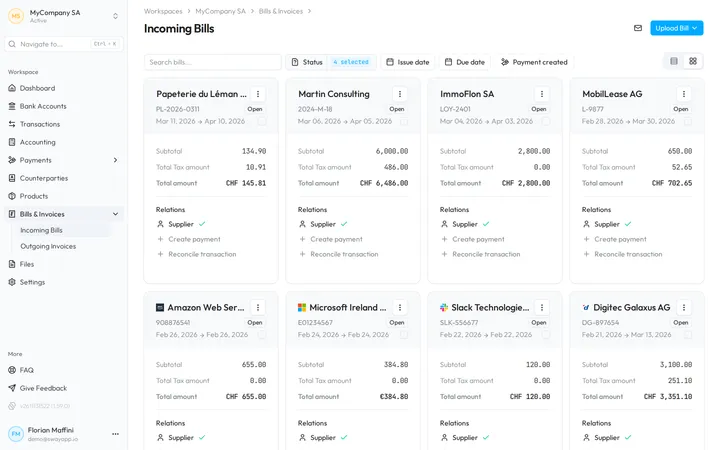
- Open the bills. In the sidebar, choose Bills & Invoices, then Incoming Bills.
- Open the upload menu. Choose Upload Bill at the top right.
- Choose how to add them. Upload Bills takes one bill per file, and several files at once. Upload & Split PDF cuts a PDF that holds several bills into one bill each.
- Pick the files. Sway confirms with Bill uploaded successfully, or with Processing documents for a split. Each new card shows a spinning icon while Sway reads the bill.
You can also drop files on the list: The file will be uploaded to your bills. A split sends each bill and receipt of the PDF to this page, and any other document, such as a contract, to the File explorer.
How Sway reads a bill
Sway reads bills in the EU; Sway stores customer data in Switzerland. On a QR-bill, the data of the QR code takes precedence over the rest of the page. When the reading fails, a red triangle appears beside the name: upload the file again or contact support.
Send bills by email
The envelope at the top right holds the email address of your bills: its tooltip shows the address, and a click copies it. Forward bills to it, or give it to your suppliers: Sway turns each attachment into a bill. It accepts mail from the collaborators of the workspace and from the senders of the Inbox Manager.
Statuses
Sway links a bill to the counterparty whose bank account matches the IBAN or QR-IBAN of the supplier. A bill with an amount and its currency, an invoice date, a due date, at least one line and a linked supplier moves to Open on its own.
- Draft: a detail is missing. Complete it on the page of the bill: see Reconcile a bill or an invoice.
- Open, Approved, Paid: the bill waits for payment, is approved for payment, or is paid.
- Voided: the bill is cancelled. The list hides it until you tick it in Status.
Mark as…, in the menu of a bill, changes its status. A Draft bill moves to Open or Voided only, and Open, Approved and Paid stay greyed out until the bill is complete.
Cards and table
The two buttons at the top right of the list switch between cards and a table. A card shows the supplier, the invoice number, the status, the invoice and due dates and the totals; its name opens the bill. Under Relations, a green tick marks what the bill already has:
- Supplier opens the counterparty, Payment the payment and Bank transaction the reconciled transaction.
- Add supplier, Create payment and Reconcile transaction open the bill to add what is missing.
The table shows Supplier name, Amount due, Invoice date, Due date, Status, Invoice Number, Payment and Total amount; View shows or hides columns.
The menu of a bill holds Download, Mark as… and Make a payment, which opens the payment form of Draft payments. Make a payment stays greyed out for a Draft or Voided bill and for an amount of zero or less.
Find a bill
- Search bills… searches the bills; while you search, the date filters and Payment created are greyed out.
- Status, Issue date and Due date keep the chosen statuses and periods, and Payment created the bills with a payment (Yes) or without one (No).
- Reset clears the search and the filters.
Act on several bills
Tick the bills, then open 3 selected at the top right of the list.
- Export as CSV exports them to a CSV file.
- Export as XML (pain.001) and Pay bills prepare their payment: see Pay bills. Some bills cannot be paid stops a selection with a Draft or Voided bill or an amount of zero or less, and Multiple currencies selected a selection in several currencies.
- Mark as… offers the statuses that every selected bill allows.
Next step
Pay the open bills in one go with Pay bills, or check a bill in Reconcile a bill or an invoice.
Related answers
Written from the Incoming Bills screen of web app 1.58.0, with the labels of its EN, FR and DE catalogues.