

Cash coding books each bank transaction to an account of your chart of accounts, with a tax code and an entry name. Sway suggests the coding; you accept or correct it.
Before you start
- The Owner, Admin, Member or Support role in the workspace. A Member cannot switch on Auto-encode: the button stays greyed out until another role does.
- A chart of accounts in which at least one bank account is linked to an account. Without it, the page shows No Chart of Accounts or Your Chart of Accounts is missing some necessary configurations, and Go to settings opens the chart.
- The tax codes of the workspace, and its VAT scheme in Accounting information.
For the whole setup in order, see How to set up a new workspace for accounting?
Code a transaction
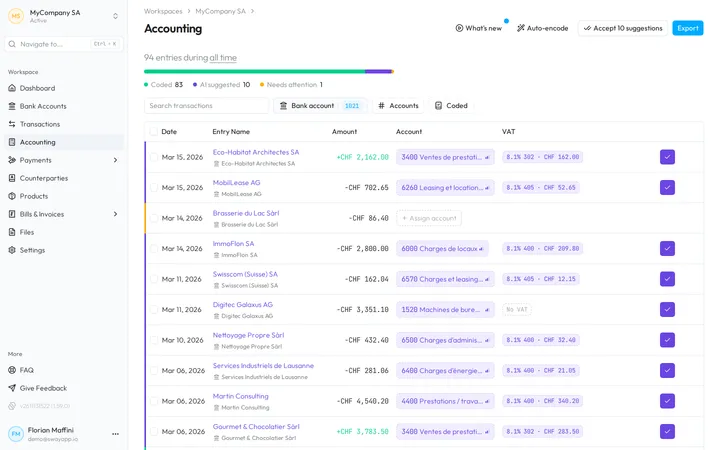
- Open the page. In the sidebar, choose Accounting. The table lists the transactions of one bank account, which Bank account changes.
- Set the period. The heading counts the entries of the period, such as 94 entries during all time. Click the period to pick two dates or a preset, from All to Last month.
- Pick the account. In the Account column, click Assign account or the account shown, then choose an account. It brings the tax code that your chart of accounts gives it.
- Check the VAT. The VAT column shows the rate, the tax code and the VAT amount, such as 8.1% 405 · CHF 52.65, or No VAT.
- Name the entry. Click the text in Entry Name and type the name of the entry in your books.
Sway saves each change at once. Once every line of the transaction has an account, its row counts as Coded.
Click the VAT of a line to open VAT treatment: pick a tax code of the workspace or Exempt / no VAT. With a tax code, you can correct the VAT amount that Sway computes and the Tax Account, such as the account of the input VAT on a purchase. Apply saves the treatment.
Accept the suggestions
A suggested row shows the coding that Sway proposes in purple, with three bars for its High confidence, Medium confidence or Low confidence.
- The purple check at the end of a row accepts its suggestion.
- Accept 10 suggestions, at the top right, accepts every suggestion on the page.
- To accept some of them, tick their rows and choose Accept suggestions in the selection menu, such as 12 selected.
- To code a suggested row your way, choose another account in it.
Auto-encode asks Sway for suggestions for the uncoded transactions on the page. The account coding rules apply first, and a rule codes its transactions outright. When suggestions are off for the workspace, the button shows a gear: Enable auto-encode? explains what Sway will suggest, and Confirm switches suggestions on.
Split a transaction
- Open the panel. Click the row, or Open details at its end. Transaction coding shows the transaction, its counterparty, communication and reference, then its lines.
- Add a line. Choose Add a line: the new line takes the amount that is left.
- Code each line. Give each line an Entry Name, an account and an amount. VAT opens its treatment; the cross removes the line.
- Balance the lines. The bottom of the panel shows the Total and the Remaining amount. While you type an amount, a button under it proposes the amount that balances the split.
- Save. Save waits until the panel shows Balanced. Sway confirms with Change successful.
The menu beside Transaction coding holds Reset, which removes every line, and Reset to suggestion. Saving with no line removes the coding of the transaction. To attach a bill or an invoice to the transaction, drop its file on the panel; Linked invoices lists the documents matched with it.
Discard changes?
If you close the panel before you save, Discard changes? warns that your changes to the coding of this transaction will be lost. Keep editing returns to the panel; Discard closes it.
The Accounting page
Under the heading, a bar counts the transactions of the period by status, and the left edge of each row takes the colour of its status:
- Coded, in green: every line has an account.
- AI suggested, in purple: a suggestion waits for you.
- Needs attention, in orange: no coding and no suggestion, or a line without an account.
In the toolbar, Search transactions, Accounts and Coded narrow the list, and Reset clears them. While a bank account is not linked yet, Bank account offers Configure other accounts, which links it to an Accounting Code.
In a row:
- The counterparty under the entry name opens the bank transaction, and a document icon opens its bills or invoices. When a total differs from its subtotal plus VAT by a rounding, a blue icon beside it gives the difference; its tooltip, Accepted as rounding, explains it.
- A transaction of zero amount shows in grey: Sway neither codes nor exports it.
- An orange triangle beside the amount means that the transaction amount has changed since the coding: click it, then Update amount.
Next step
Export to your accounting tool, or let account coding rules code your recurring transactions.
Related answers
Written from the Accounting screen of web app 1.58.0, with the labels of its EN, FR and DE catalogues.