

Notifications are personal: each user sets their own, once for all their workspaces, then for any workspace that needs something different.
Before you start
- An account in Sway. The page lists every workspace that you belong to, whatever your role in it.
Set your default notifications
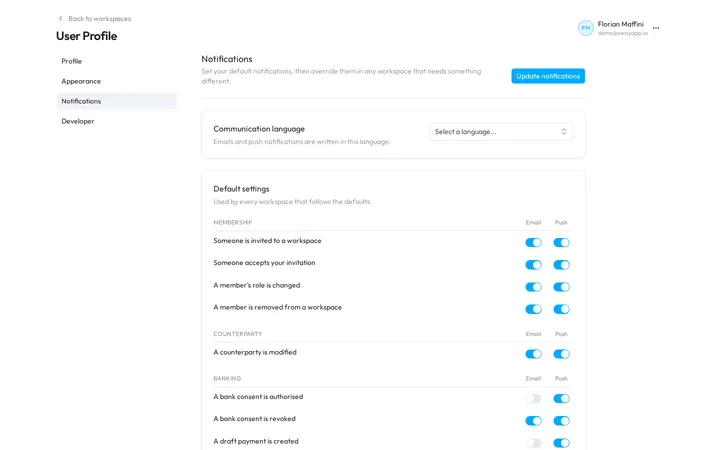
- Open the notifications. At the bottom of the sidebar, choose your name, then Profile, and Notifications in the menu of the profile.
- Pick the language. Under Communication language, choose English, French or German. Sway writes your emails and push notifications in it.
- Choose the channels. Under Default settings, each event has an Email switch and a Push switch. Push sends a notification to the Sway mobile app.
- Save. Choose Update notifications at the top right. Sway confirms with Change successful.
The events
The events come in four groups:
- Membership: Someone is invited to a workspace, Someone accepts your invitation, A member’s role is changed and A member is removed from a workspace.
- Counterparty: A counterparty is modified.
- Banking: A bank consent is authorised, A bank consent is revoked, A draft payment is created and A payment is initiated.
- Bank statements and invoices: A bank statement is ready for review, A bank statement is imported and A document can’t be processed.
At the start, every event uses both channels, except A bank consent is authorised, A draft payment is created, A payment is initiated and A bank statement is imported, which start with push only.
Set a workspace apart
Below the defaults, each workspace that you belong to has its own card, in alphabetical order.
- Find the workspace. Its card shows its name and the settings that it follows.
- Choose its mode. In the menu of the card, choose Default settings, Custom settings or Muted.
- Set its switches. With Custom settings, the card shows the events with their switches, copied from your defaults: change the ones that differ.
- Save. Choose Update notifications.
- Default settings: the workspace follows your defaults.
- Custom settings: the workspace overrides your defaults with its own switches.
- Muted: you receive no notifications from this workspace.
Sway keeps the custom switches of a workspace when you set it back to Default settings or Muted, for the next time you choose Custom settings.
Unsaved changes
If you leave the page before you save, Unsaved changes warns that your notification changes will be lost. Stay on page keeps them; Leave without saving drops them.
Next step
Create a key for the Sway API in Developer and API keys.
Written from the Notifications screen of web app 1.58.0, with the labels of its EN, FR and DE catalogues.