

A workspace has two email addresses: one for its bills, shown by the envelope on Incoming bills, and one for its invoices, on Outgoing invoices. Sway accepts mail at these addresses only from the senders that the Inbox Manager allows.
Before you start
- The Owner, Admin or Support role in the workspace. With another role, the Inbox Manager tab is greyed out and the page shows No access.
- The email address or the domain of the sender, such as your fiduciary or a supplier.
Who can send
In the sidebar, choose Settings, then the Inbox Manager tab.
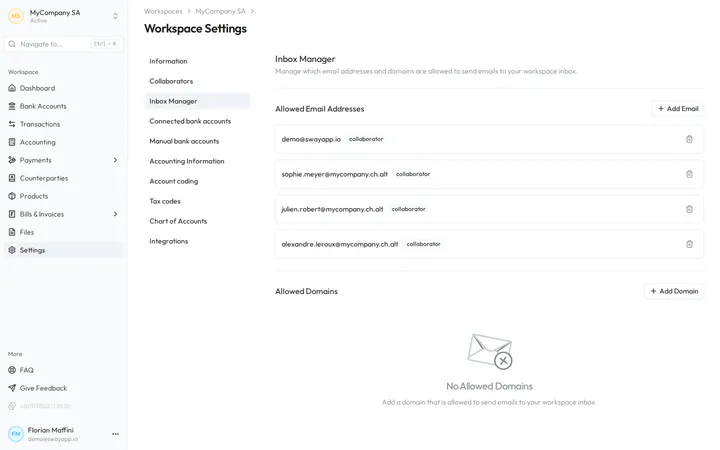
Allowed Email Addresses lists two kinds of sender:
- The collaborators of the workspace, marked collaborator. They can always send, so their bin stays greyed out: to stop one, remove them from the workspace in Collaborators.
- The addresses that you added, marked external.
Allowed Domains lists the domains whose addresses may all send, or shows No Allowed Domains. A domain covers the addresses at that exact domain: an address at billing.example.com needs its own entry beside example.com.
Sway refuses an email from any other sender, an email without an attachment, and every email while the workspace has no active subscription or trial.
Allow an email address
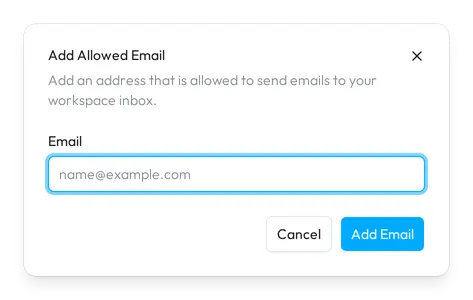
- Open the dialog. Choose Add Email beside Allowed Email Addresses.
- Type the address. In Email, type the address of the sender. Sway saves it in lower case.
- Add it. Choose Add Email. The address appears with external.
An address that is already in the list, also as a collaborator, shows This email address is already allowed.
Allow a domain
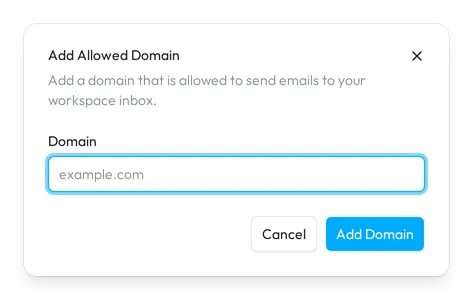
- Open the dialog. Choose Add Domain beside Allowed Domains.
- Type the domain. In Domain, type the part of the addresses after the @, such as example.com.
- Add it. Choose Add Domain. The domain appears in the list.
Remove a sender
Choose the bin beside an external address or a domain, then Delete in the confirmation. From then on, Sway refuses the emails of that sender.
Fields
The Add Allowed Email dialog:
| Field | What it takes | Required |
|---|---|---|
| One email address, such as name@example.com. | Yes |
The Add Allowed Domain dialog:
| Field | What it takes | Required |
|---|---|---|
| Domain | One domain name without the @, such as example.com. | Yes |
Next step
Send a first bill to the address of Incoming bills.
Written from the Inbox Manager screen of web app 1.58.0, with the labels of its EN, FR and DE catalogues.