

Before you start
- The Owner, Admin or Support role in the workspace. With the Member role, the Information tab stays greyed out and the page shows No access.
Update the information
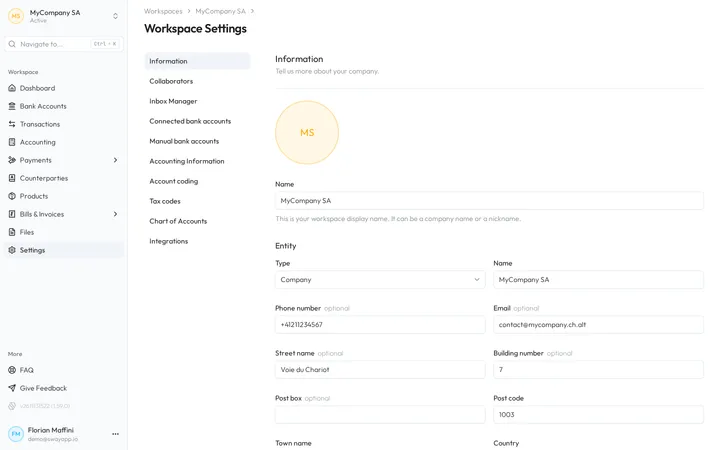
- Open the information. In the sidebar, choose Settings: the Information tab opens first.
- Name the workspace. Name is the display name of the workspace, a company name or a nickname. It shows at the top of the sidebar and in the list of workspaces.
- Describe the entity. Under Entity, choose whether a Company or an Individual stands behind the workspace, then give its legal name, its contact details and its address.
- Save. Choose Update information. Sway confirms with Change successful.
Change the picture
The round picture at the top of the page shows the initials of the workspace until you upload one. Click it, then choose an image file. Sway confirms the upload, and the new picture appears shortly after.
Request the deletion of the workspace
Danger zone, at the bottom of the page, holds Request deletion. It opens the deletion request form of the Sway website in a new tab. Sway does not delete the workspace automatically: once it receives the request, the Sway team contacts you to validate it.
Fields
| Field | What it takes | Required |
|---|---|---|
| Name | The display name of the workspace, from 2 to 30 characters, such as Acme Inc. | Yes |
| Type | Company or Individual. It starts on Company. | Yes |
| Name | Under Entity, the legal name of the company or the person. | Yes |
| Phone number | A phone number, such as +41 79 123 45 67. | No |
| A contact address, such as name@example.com. Sway checks its format. | No | |
| Street name | The street of the address. | No |
| Building number | The number in the street. | No |
| Post box | The post box, if the mail goes there. | No |
| Post code | The post code, at least 2 characters. | Yes |
| Town name | The town. | Yes |
| Country | The country of the address. It starts on Switzerland. | Yes |
Next step
Set the VAT scheme and the currency of the books in Accounting information.
Written from the Information screen of web app 1.58.0, with the labels of its EN, FR and DE catalogues.