

The chart of accounts lists the accounts that Sway codes the transactions to, in groups and sub-groups. A workspace has one.
Before you start
- The Owner, Admin, Member or Support role in the workspace.
- The chart of accounts of your accounting tool: a CSV file from Winbiz, a .txt file from Crésus, an XML file from WinEUR, or a file from Export in Sway. The FAQ gives the steps for Winbiz, Crésus and WinEUR.
Import a chart of accounts
- Open the page. In the sidebar, choose Settings, then the Chart of Accounts tab. A workspace without one shows No Chart of Accounts.
- Add the file. Choose Upload at the top right, or drop the file on the page.
- Correct the file if needed. Could not import Chart of Accounts lists what blocks the import, such as an account code that appears twice. Correct the file in your tool, then upload it again.
- Reconcile the tax codes. When the file brings tax codes and the workspace already has some, Reconcile tax codes pairs each one with a tax code of the workspace, or with Create a new tax code. Where their values differ, choose Use the file’s values or Keep the current values, then Import.
- Settle the currency. When Sway cannot detect the currency of the file, or when it differs from the one of the workspace, Chart of accounts currency asks you to Confirm a currency or Skip.
Or start with a Swiss SME template, under No Chart of Accounts, creates a chart for a Swiss SME instead, in CHF, with four tax codes at 8.1, 2.6, 3.8 and 0 %.
After a Winbiz import, Tax codes without a ledger account lists the imported tax codes without a ledger account, which Winbiz needs to import accrual basis accounting back: set one in Tax codes.
Link your bank accounts
The cash coding lists the transactions of a bank account only once an account of the chart stands for it. Until then, the page asks you to finish setting up the chart.
- Open the link. Choose Link at least one bank account to an accounting code. The Link Bank Account dialog opens.
- Pair the accounts. Under Accounting Code, choose the account of the chart, such as 1020; under Bank account, the bank account.
- Link them. Choose Link Bank Account.
The account then shows the IBAN of its bank account, with a red triangle when the bank account is switched off or archived: the cash coding leaves it out.
Edit the chart
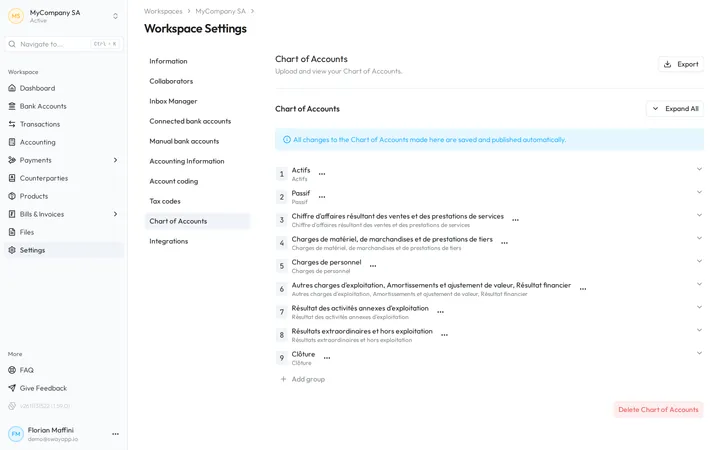
Every change on this page is saved and published at once.
- The menu of a group, three dots beside its name, holds Edit, Add account, Add Sub-Group and Delete. The menu of an account holds Edit and Delete. Add group, under the list, adds a group.
- Delete removes a group or an account permanently, after you confirm. It stays greyed out on a group that holds sub-groups or accounts.
Export or delete the chart
Export, at the top right, downloads the chart and the tax codes as a CSV file that Sway can import again.
Delete Chart of Accounts, at the bottom of the page, asks Are you sure you want to delete this Chart of Accounts? The accounting entries, the transactions and the tax codes stay, and you can upload another chart afterwards.
A deletion cannot be undone
The groups, the accounts and their links to the bank accounts go with the chart. Export it first to keep a copy.
Fields
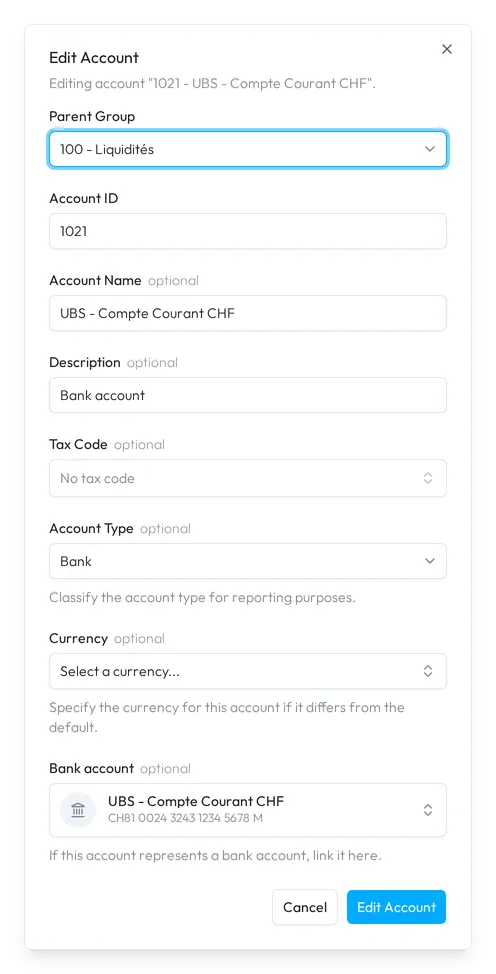
Add account or Edit in a menu opens Add Account or Edit Account:
| Field | What it takes | Required |
|---|---|---|
| Parent Group | The group that holds the account. | Yes |
| Account ID | The number of the account, such as 1020. Two accounts cannot share it. | Yes |
| Account Name | The name of the account, such as UBS - Checking Account. | Yes |
| Description | A description of your own. | No |
| Tax Code | The tax code that Sway applies to the entries coded to this account. | No |
| Account Type | The type of the account: the types of the balance sheet under Balance Sheet, those of the income statement under Profit & Loss, and Suspense under Other. | No |
| Currency | The currency of the account, when it differs from the default. | No |
| Bank account | The bank account that the account stands for, as in Link Bank Account. | No |
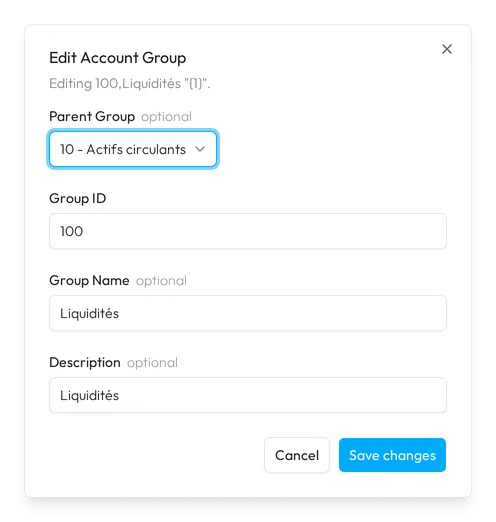
Add group, Add Sub-Group or Edit opens Add Account Group or Edit Account Group:
| Field | What it takes | Required |
|---|---|---|
| Parent Group | The group above it, or Top level (no parent). | No |
| Group ID | The number of the group, such as 100. Two groups cannot share it. | Yes |
| Group Name | The name of the group, such as Assets. | Yes |
| Description | A description of your own. | No |
Next step
Check the tax codes, then code the transactions in Cash coding.
Related answers
Written from the Chart of Accounts screen of web app 1.58.0, with the labels of its EN, FR and DE catalogues.