

The dashboard is the first page of a workspace. It sums up the money on your bank accounts, the activity of a period, the latest transactions and the people of the workspace.
Before you start
- The Owner, Admin, Member or Support role in the workspace.
- At least one bank account. See Connect a bank account. Without one, the chart shows No data available.
Read the aggregated balance
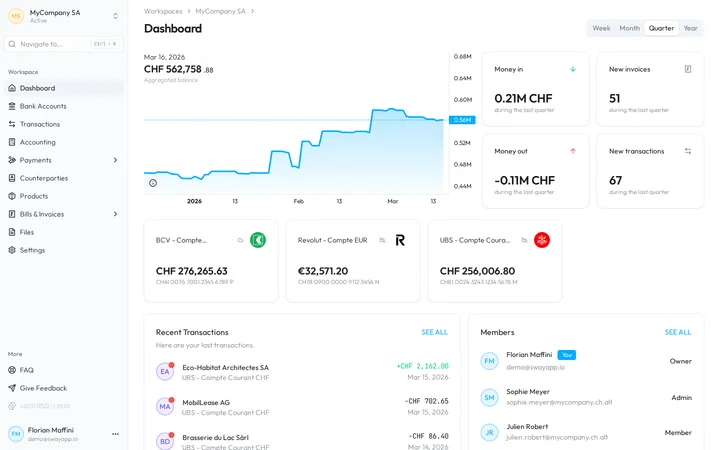
- Open the dashboard. In the sidebar, choose Dashboard. Sway also opens it when you sign in.
- Pick the period. At the top right, choose Week, Month, Quarter or Year; the page opens on Quarter. The period sets the span of the chart and the figures of the four cards.
- Point at a day. Move the pointer along the chart: the date and the balance of that day replace the latest ones above it.
- Copy a balance. Click a day to copy its balance to the clipboard.
The Aggregated balance adds up the balances of the bank accounts switched on in the workspace, in CHF: Sway converts the balance of an account in another currency. See What is an aggregated balance?
The four cards
Beside the chart, each card counts the selected period, as its subtitle says (during the last quarter):
- Money in: the total of the incoming transactions, rounded in thousands (K) or millions (M).
- Money out: the total of the outgoing transactions, with a minus sign.
- New invoices: the number of bills and invoices added to the workspace.
- New transactions: the number of bank transactions.
The bank accounts
Under the chart, one card per bank account switched on in the workspace shows its name, the logo of its bank, its latest balance in its own currency, its IBAN and a small curve of its balance. A cloud marks a Live bank account, a crossed-out cloud a Manual bank account; a plug shows that the consent of a live account has ended. Click a card to open the account.
Recent transactions and members
- Recent Transactions lists the last five transactions of the workspace, with the account, the amount and the booking date. A red dot on the avatar marks a transaction not yet checked. Click its description to open it; See all opens Transactions.
- Members lists the people of the workspace with their email address and their role, and You marks you. See all opens Collaborators.
Find your way around
The sidebar opens every page of the workspace. At its top, the workspace switcher shows the name and the state of the workspace. Navigate to… jumps to a page by its name, also with Ctrl + K (⌘ K on a Mac). Under Workspace come Dashboard, Bank Accounts, Transactions, Accounting, Payments, Counterparties, Products, Bills & Invoices, Files and Settings. Under More, FAQ opens the FAQ of this site and Give Feedback writes an email to Sway. Your name, at the bottom, opens the menu of your profile.
Next step
Review the suggestions of your new transactions, or invite your colleagues.
Related answers
Written from the Dashboard screen of web app 1.58.0, with the labels of its EN, FR and DE catalogues.