

Before you start
- The Owner, Admin, Member or Support role in the workspace.
- A bank account that appears in Sway: an account switched off in Bank connections is not offered.
Export transactions
- Open the export. On the page of a bank account, choose Export: the dialog starts on that account. On Bank Accounts, Export opens the same dialog with no account chosen.
- Choose the account. In Bank account, pick the account to export, one per export.
- Set the period. In Period, pick the start date and the end date. The end date cannot be before the start date.
- Pick the format. In Format, choose the file that you need. Some formats ask for more settings, described below.
- Set the options. Tick Store file in workspace to keep a copy with the account, and Export without accentuation to replace accented letters, for a tool that does not read them.
- Export. Choose Export. Sway generates the file and your browser downloads it once it is ready. Cancel stops the wait.
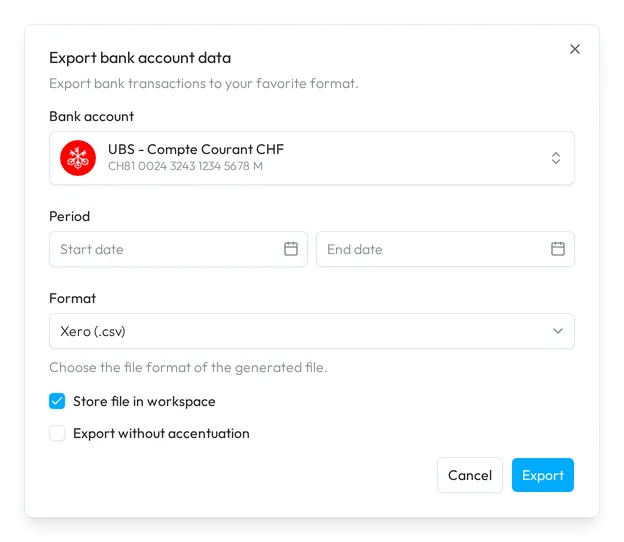
The dialog remembers the format and its settings from your last export in this browser.
Formats
| Format | What you get |
|---|---|
| Xero (.csv) | A CSV file laid out for Xero. |
| QuickBooks (.csv) | A CSV file laid out for QuickBooks. |
| CAMT.053 (.xml) | A bank statement in the ISO 20022 CAMT.053 format. |
| Crésus (.txt) | A file of entries for Crésus, with the settings below. |
| Winbiz (.csv) | A file of entries for Winbiz, with the settings below. |
| WinEUR (.txt) | A file laid out for WinEUR. |
| CSV Statement (.csv) | A statement of the period as a CSV file. |
| HTML Statement (.html) | A statement of the period as a web page. |
| PDF Statement (.pdf) | A statement of the period as a PDF. |
| DSV Custom (.*) | A delimited text file with the columns and the delimiter that you choose. |
Crésus and Winbiz
Both formats ask for the codes of two accounts, which pre-fill your accounting export: the Bank code, the account of the bank in your chart of accounts, and the Suspense code, the suspense account that takes the other side of each transaction. They also take the VAT scheme, the VAT rate and, for Crésus, the VAT code. Include headers set to Yes starts the file with a line of column names.
For Crésus, Exported Columns lists the columns of the file and how Sway fills each of them.
DSV Custom
DSV Delimiter sets the character between the columns. In DSV Columns, give each column a property of the transaction, found with Search transaction property…, a Header name and a Default value for an empty cell. Add column adds the next one.
Fields
| Field | What it takes | Required |
|---|---|---|
| Bank account | One bank account of the workspace. | Yes |
| Period | A start date and an end date, the end not before the start. | Yes |
| Format | One of the formats above. | Yes |
| DSV Delimiter | Comma (,), Semicolon (;), Tab, Pipe (|) or Space. | Yes, for DSV Custom |
| DSV Columns | At least one column, each with a property, a header name and an optional default value. | Yes, for DSV Custom |
| Bank code | The account of the bank in your chart of accounts. | Yes, for Crésus and Winbiz |
| Suspense code | The suspense account that takes the other side of each transaction. | Yes, for Crésus and Winbiz |
| VAT scheme | Cash basis, VAT net tax rate, No VAT or Accrual basis. | Yes, for Crésus and Winbiz |
| VAT code | None or TAUX1. | Yes, for Crésus |
| VAT rate | A percentage from 0 to 100. | Yes, for Crésus and Winbiz |
| Include headers | Yes or No. | No |
| Store file in workspace | Ticked or not. | No |
| Export without accentuation | Ticked or not. | No |
Where the file goes
Your browser downloads the file. With Store file in workspace ticked, Sway also keeps it in the files of the account, under the scope Export: see Bank account files.
Next step
Go back to the Bank accounts section of the manual, or connect another bank.
Related answers
Written from the Export bank account data screen of web app 1.57.1, with the labels of its EN, FR and DE catalogues.