

The page of a bill or an invoice shows the document as Sway read it. Beside it, cards link it to the rest of Sway: Transactions, Supplier for a bill or Receiver for an invoice, Payments for a bill, and Comments.
Before you start
- The Owner, Admin, Member or Support role in the workspace.
- A bill or an invoice in Sway. Open it from Incoming bills or Outgoing invoices.
Check what Sway read
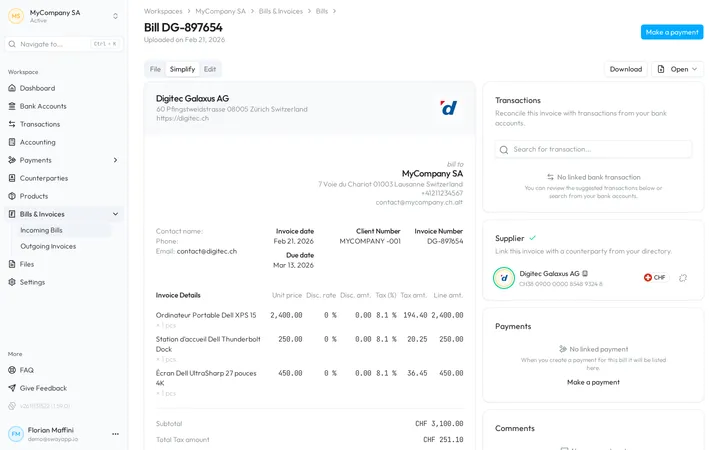
File shows the uploaded file, which Download saves. Simplify lays out what Sway read: the issuer and the addressee, the Invoice date, the Due date, the Invoice Number, the lines under Invoice Details, the Subtotal, the Total Tax amount, the Total amount, the Amount due, and the Payment Information with the IBAN and the Payment reference. Edit shows the same fields, ready to correct.
How Sway reads a document
Sway reads bills and invoices in the EU; Sway stores customer data in Switzerland. During the reading, a spinner turns beside the title of the page.
Correct a field
- Open the editing view. Choose Edit.
- Open the field. Click the value to correct, or the name of an empty field. A dialog such as Edit Due date opens, with a calendar for a date, or an amount and a currency for an amount.
- Save the value. Choose Save. Sway saves it at once and runs its checks again.
The circled plus beside Invoice Details adds a line; the cross at the end of a line removes it once you confirm with Delete.
Complete a draft
On a draft, a red alert, This bill needs review, lists what is missing: the amount, the currency, the invoice date, the due date, a line, or the linked supplier, the receiver for an invoice. Click an item to reach its field. Once nothing is missing, All mandatory fields are validated. comes with Set to status Open. The status menu at the top right offers Open, Approved and Paid only then.
The Supplier card links the bill to a counterparty: search your counterparties, or create one from the name on the bill. To change it later, set the bill back to Draft.
Check the amounts
Sway checks that the amounts of a bill add up:
- the amount of a line is its quantity × its unit price, unless the line has a discount, and its tax follows from its tax rate;
- the Total Tax amount is the sum of the line taxes;
- the Subtotal is the sum of the lines, less the tax when the prices include it;
- the Total amount is the Subtotal plus the Total Tax amount.
When one does not add up, a yellow alert lists each mismatch with the amount on the bill and the expected one, and a yellow triangle marks each field concerned. Review amounts opens Edit at the first one. The alert blocks neither a status change nor a payment.
A Total amount within 0.10 of the expected one passes as rounding: a blue icon beside it shows the gap, such as (Rounding +CHF 0.05), and its tooltip, Accepted as rounding, gives both figures.
Link the bank transaction
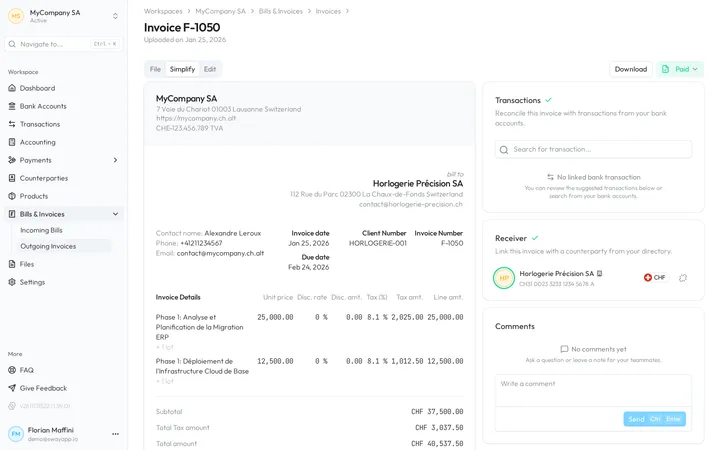
- Find the transaction. In the Transactions card, a suggestion carries the badge suggested. Otherwise, type in Search for transaction…: a bill takes only a debit, an invoice only a credit.
- Link it. The tick approves a suggestion and links the transaction; the cross removes the suggestion. In the search, choose the transaction.
- Check the result. The linked transaction shows a green ring. Once it pays the full amount, a green tick appears beside Transactions, and Sway sets the status to Paid.
A transaction already linked to another document opens Reconcile a linked transaction? first, with the same choices as in Review the suggestions. The broken chain beside a linked transaction unlinks it, with no confirmation.
Pay a bill
Make a payment, at the top right, opens the Make a payment dialog for the bill: see Draft payments. It works once the bill is Open, Approved or Paid with an amount to pay. The payment then appears in the Payments card.
Fields
The address dialogs of Edit, such as Edit Supplier address:
| Field | What it takes | Required |
|---|---|---|
| Street name | The street. | No |
| Building number | The number in the street. | No |
| Post box | A post office box. | No |
| Post code | The post code, at least 2 characters. | Yes |
| Town name | The town. | Yes |
| Country | The country. It starts on Switzerland. | Yes |
Next step
Pay several bills at once in Pay bills, or approve the matches of every transaction in Review the suggestions.
Written from the Bill screen of web app 1.58.0, with the labels of its EN, FR and DE catalogues.