

A manual bank account has no connection to the bank. It suits a bank that Sway cannot connect yet, a card or a cash account: you add its transactions by importing statements.
Before you start
- The Owner, Admin or Support role in the workspace. With another role, Add account stays greyed out and the Manual accounts page shows No access.
- The IBAN of the account, or its BBAN or card number.
Create a manual bank account
- Open the menu of new accounts. In the sidebar, choose Bank Accounts, then Add account and Manual bank account. From the settings, Manual bank accounts has its own Add account button.
- Pick the country of the bank. The Create a bank account dialog asks you to Select your bank country.
- Choose the bank. The list holds every bank of that country, since a manual account needs no connection. If your bank is not in it, choose Create Generic Bank Account under the list.
- Describe the account. The Create a bank account form asks you to Complete the bank account information. The fields are in the table below.
- Create it. Choose Create Account. The account appears on Bank Accounts, ready for its first statement.
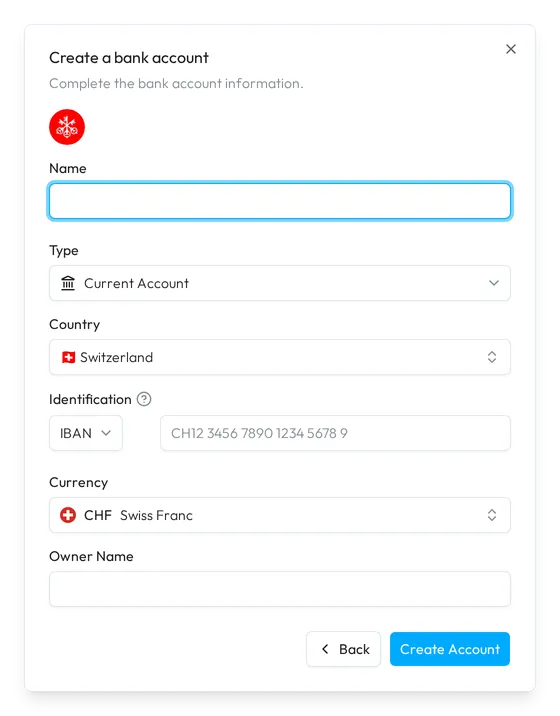
Fields
| Field | What it takes | Required |
|---|---|---|
| Name | The name of the account in Sway, from 2 to 100 characters. | Yes |
| Type | Current Account, Savings Account, Credit/Debit Card Account, Cash Payment Account, Loan Account or Other account type. It starts on Current Account. | Yes |
| Country | The country of the account. It starts on the country that you picked for the list of banks. | Yes |
| Identification | The kind of number, IBAN, Account number (BBAN) or Credit card number (PAN), then the number itself. Sway checks the format and the check digits of an IBAN, and the format of a card number. Credit/Debit Card Account switches it to the PAN, Other account type to the BBAN. | Yes |
| Currency | The currency of the account. It starts on the currency of the country, such as CHF for Switzerland. | Yes |
| Owner Name | The holder of the account, from 2 to 30 characters. | Yes |
Which one should I choose?, beside Identification, explains the three kinds of number: the IBAN for most accounts, the BBAN only when the bank gives no IBAN, and the PAN for an account based on a card.
Feed the account
Open the account from Bank Accounts and import its statements, as a PDF, a CAMT.053 file or a CSV laid out like the example file of the import: see Import a bank statement. The first import needs the starting balance of the account.
The Manual accounts page
In the sidebar, choose Settings, then the Manual bank accounts tab. The Manual accounts page lists the manual accounts of the workspace, grouped by bank. Each row shows the name of the account, its currency and its IBAN, with a switch and a menu.
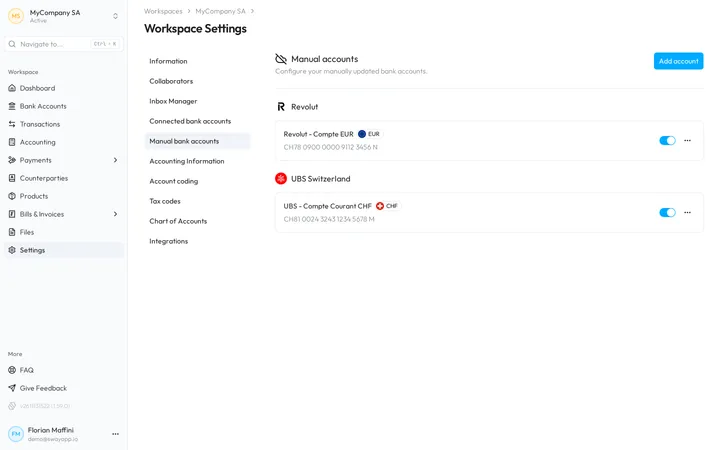
- The pencil beside the name renames the account, from 2 to 100 characters.
- The switch decides whether the account appears in the rest of the web app. Switch it off to hide the account without deleting it.
- The menu holds Archive and Delete.
Archive an account
Choose Archive in the menu of the account. Do you want to archive this bank account? warns that the account leaves this page; Sway keeps or deletes its data as its privacy policy sets out.
Delete an account
- Open the deletion. Choose Delete in the menu of the account.
- Check what goes with it. Do you really wish to delete this account? counts the Transactions on the account and the Links to invoices that the deletion removes.
- Confirm it. Type DELETE in the field, then choose Confirm.
Sway confirms with Deletion request successfully submitted and deletes the account shortly after.
A deletion is permanent
All the data of the account and its links to invoices are permanently deleted. To keep the history, archive the account or switch it off instead.
Next step
Import a bank statement into the new account.
Related answers
Written from the Manual accounts screen of web app 1.57.1, with the labels of its EN, FR and DE catalogues.